Quick Answer: Secure a WooCommerce store in 2026 with five layers: an edge firewall, passkey or app-based 2FA, rate limits on login and checkout, a fixed patch schedule, and tested off-site backups on isolated hosting. A free security plugin can't do the network-level work, and a shared server will go down under a real attack no matter how many plugins sit on it.
The call usually comes on a Monday morning. Orders are failing, the payment gateway has sent a warning, or the homepage is showing something the owner never published.
Many of those calls trace back to the same cause. In Verizon's 2026 Data Breach Investigations Report, exploited vulnerabilities started 31% of all breaches, and for the first time in the report's 19 years that beat stolen credentials as the top way in.
Retail looks worse. In the report's retail snapshot, which covers 806 confirmed breaches, exploited vulnerabilities opened the door in 42% of cases, credential abuse in 14% and phishing in 9%.
WooCommerce stores sit right in that pattern. They run on plugins, they take card data, and bots scan them all day without caring who owns them.
Fixing that takes real server work: custom firewall rules, locked-down APIs, tested update pipelines and isolated hosting. It's the reason growing brands hire WooCommerce development services instead of trusting a free plugin to do the job.
Not Sure How Exposed Your WooCommerce Store Is?
Vareweb audits your plugins, theme, and hosting first, to find the outdated code, overlapping plugins, and weak spots that put your store and your customers' card data at risk.
Quick Overview: Unsecured WooCommerce vs. Enterprise-Secured Architecture
| Security vector | The basic plugin approach (vulnerable) | The engineered approach (secure) |
|---|---|---|
| 1. Traffic filtering | Plugin firewall running inside WordPress | Edge WAF that blocks bad traffic before it reaches the server |
| 2. Login protection | Default wp-login.php open to everyone | Custom login path, IP rules and rate limits |
| 3. Admin accounts | Passwords only | Passkeys or authenticator app for every admin and shop manager |
| 4. Spam orders and carding | Basic CAPTCHA on the checkout page | Rate limits, Turnstile and server checks on every payment endpoint |
| 5. File security | Theme editor on, loose permissions | File editing off, 755 and 644 permissions, read-only wp-config |
| 6. XML-RPC and REST API | Both fully open | XML-RPC blocked, sensitive REST routes restricted |
| 7. Skimming scripts | Dozens of third-party scripts on checkout | Content Security Policy, hosted payment fields, script inventory |
| 8. Database | Default prefix, one all-powerful DB user | Custom prefix and a least-privilege database user |
| 9. Updates | Update when you remember | Staging tests and a fixed patch schedule with a 24-hour emergency path |
| 10. Malware detection | Customer reports the problem | File integrity checks with instant alerts |
| 11. Payments and TLS | SSL certificate and nothing else | TLS 1.2+ only, signed webhooks, restricted API keys |
| 12. Backups | Backups stored on the same server | Encrypted, off-site, restore-tested backups |
| 13. Hosting | Shared plan with hundreds of neighbors | Isolated VPS, cloud or container setup behind an edge proxy |

The Engineering Reality: WooCommerce Security Checklist: How to Stop Hackers and Spam Orders
1. Deploy an Edge WAF (Web Application Firewall)
A security plugin runs inside WordPress. That means the malicious request has already reached your server, started PHP and hit your database before the plugin even looks at it.
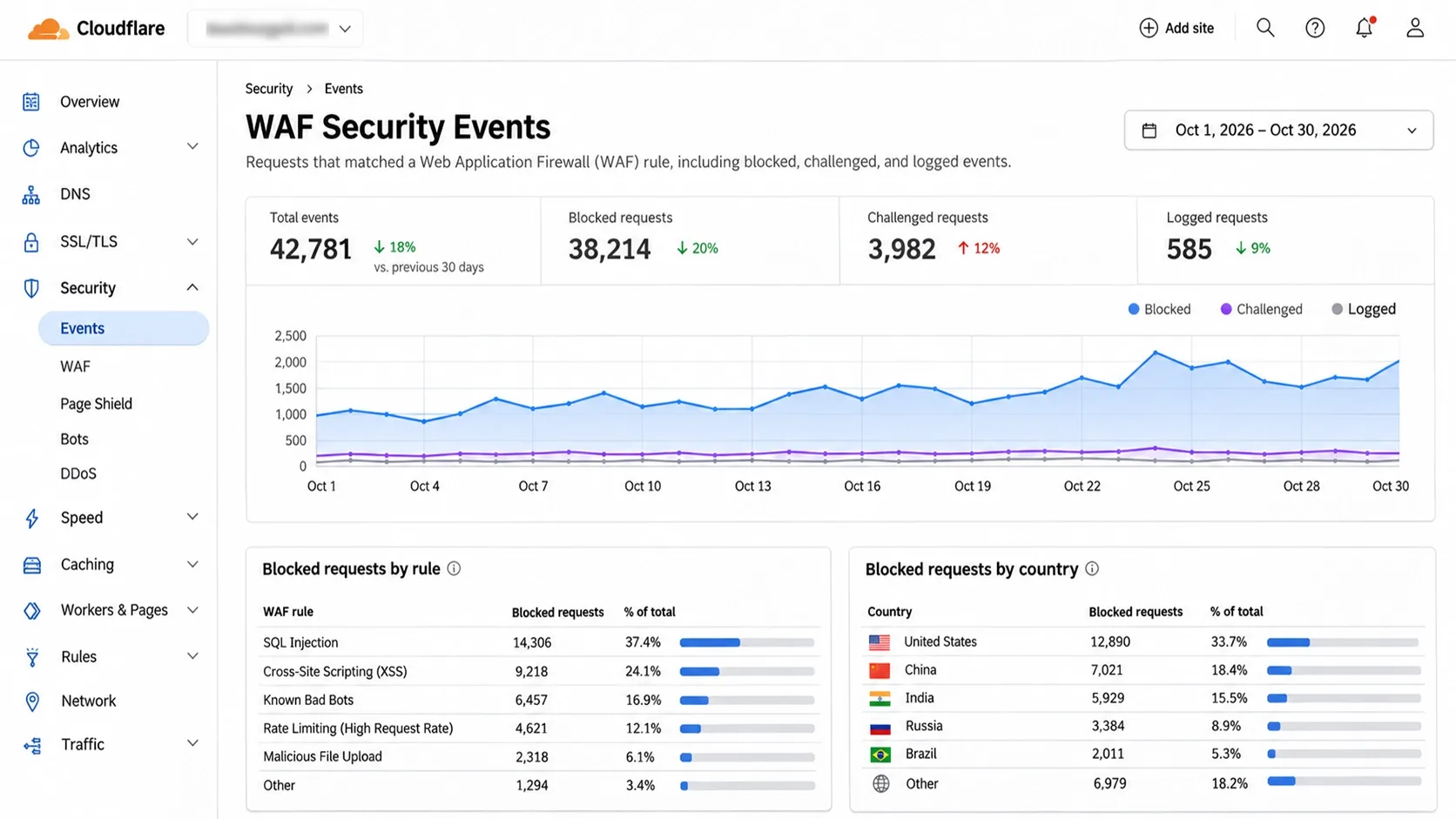
An edge WAF, such as Cloudflare or Sucuri, sits in front of your server and filters traffic first. SQL injection attempts, known exploit payloads and bad bots get dropped before they cost you any CPU.
Hosting-level protection is thinner than most owners assume. In Patchstack's State of WordPress Security report, traditional hosting defenses blocked only 12% of WordPress-specific attacks in one pentest, and 26% in a broader test.
- Proxy all traffic: point DNS through the WAF so visitors never see your server's real address.
- Lock the origin: allow web traffic to your server only from the WAF's IP ranges, so attackers can't go around it.
- Bypass cache on dynamic pages: never cache the cart, checkout or account pages.
- Turn on managed rules: start in log mode for a few days, then move to block once you've confirmed no real customers get caught.
The origin lock is the step people skip. If your server still answers requests from anywhere, the WAF is a sign on an unlocked door.
2. Masking the Default Login URL and wp-admin<
Every bot knows /wp-login.php and /wp-admin. They try them on every WordPress site they find, so an open login page gets hammered whether or not anyone targets you.
Moving the login to a custom path cuts that noise sharply. I'll be straight about its limits though: WordPress's own brute force guidance treats a hidden login as an extra layer, not the main defense.
- Move the login path: use a lightweight plugin or a server rule to serve the login form from a custom URL, and keep that URL out of public pages.
- Restrict by IP where you can: if your team works from fixed locations, allow /wp-admin only from those addresses. Leave admin-ajax.php open, because the front end uses it.
- Rate-limit the path: the same guidance gives an example of limiting login requests to 10 per minute per IP.
- Retire the username "admin": it's the first name every bot tries.
Don't forget the WooCommerce My Account page. It's a second login form that customers use, and bots hit it just as hard.
3. Enforcing Hardware-Backed 2FA and WebAuthn
Passwords alone don't hold up. Credential abuse still opened 14% of retail breaches in Verizon's 2026 data, and a reused password from some other site's leak is all it takes.
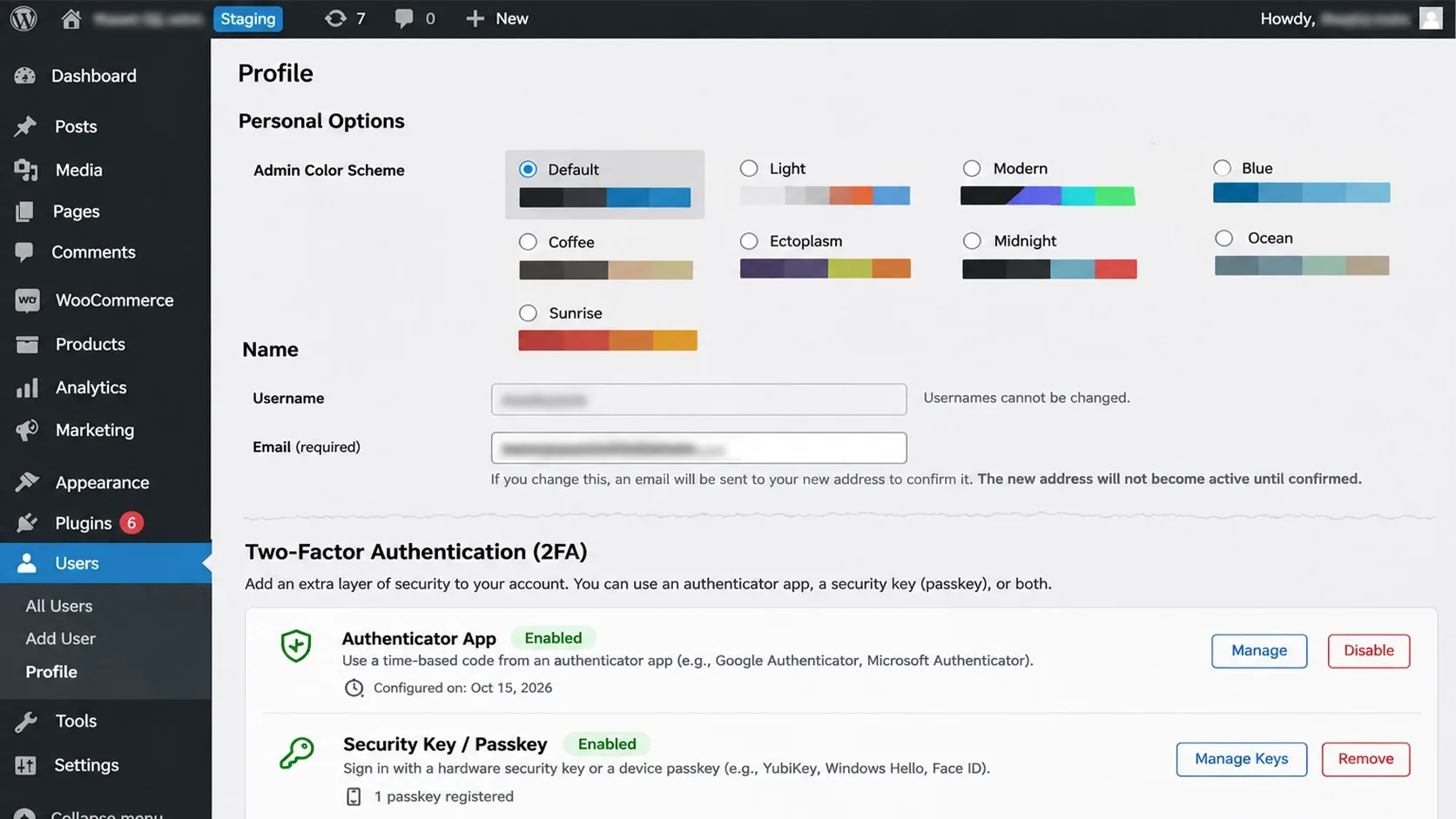
Two-factor authentication is the fix. WordPress core doesn't include it, so you add it through a plugin such as the official Two Factor plugin with a WebAuthn provider.
- Who needs it: every Administrator and Shop Manager account, with no exceptions for the owner.
- Best option: passkeys or a hardware security key, since there's no code to phish.
- Fallback: an authenticator app. Avoid SMS codes where you can.
- Recovery codes: generate them, print them, and store them somewhere other than the same laptop.
Audit your user list while you're in there. Delete accounts for former freelancers and agencies, and give everyone the lowest role that lets them do their job.
4. Stopping Carding Botnets at Checkout
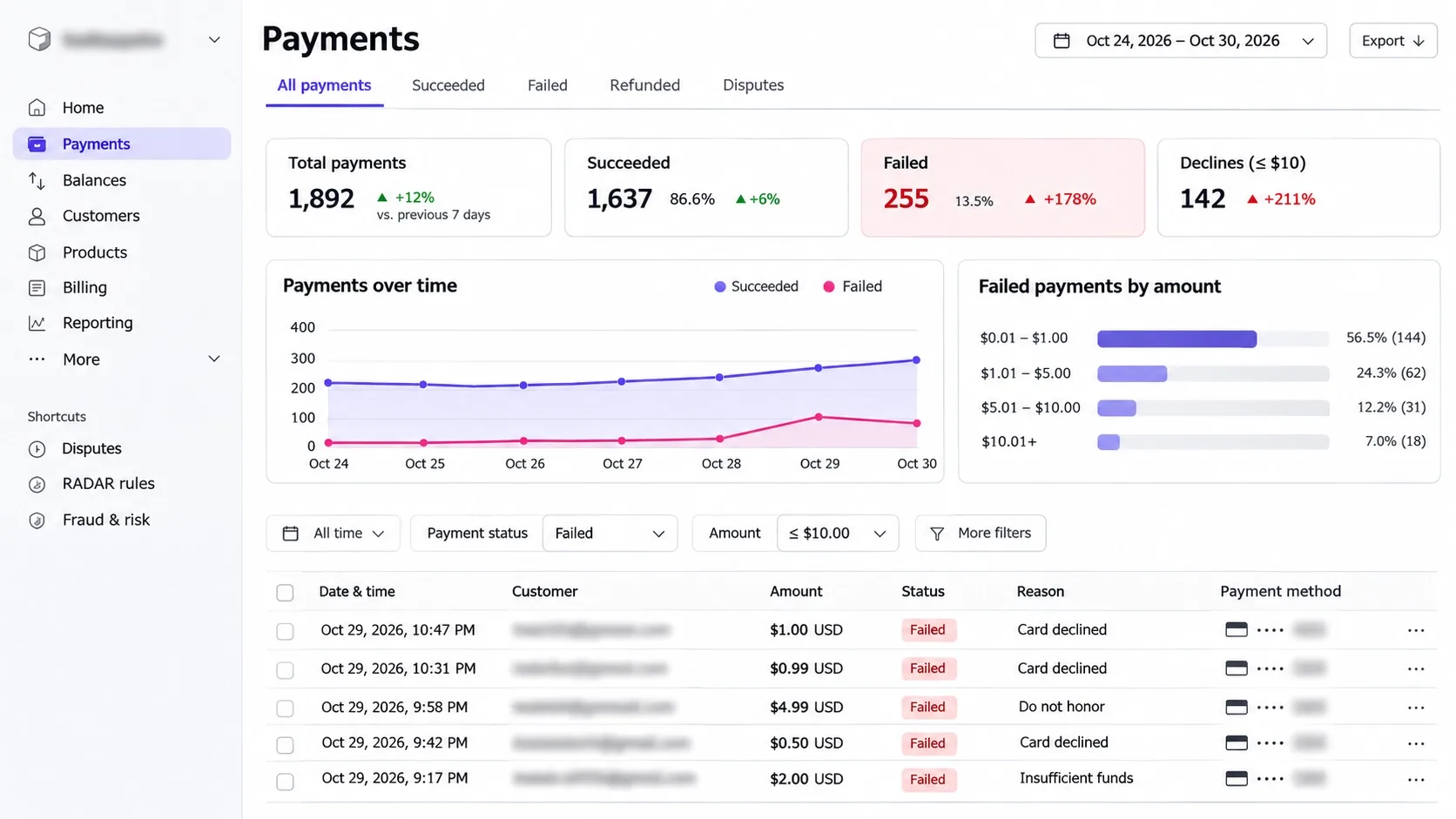
Carding, also called card testing, is when bots run lists of stolen card numbers through your checkout to see which ones still work. Your store is just the testing ground, and you pay for it.
Stripe's card testing documentation lists the damage: disputes and early fraud warnings, higher decline rates that make real customers' cards fail too, extra fees and strain on your infrastructure. Too many disputes can also put you into a card network monitoring program.
The signs are easy to spot once you know them: a spike in failed payments, a flood of declines, and tiny orders with nonsense names and emails.
When a client tells me they're getting hundreds of fake orders a day, the first thing I check isn't the CAPTCHA. I check which endpoints the bots are hitting, because WooCommerce exposes a Store API at /wp-json/wc/store/v1/ that can be called directly and skips any CAPTCHA on the checkout page.
- Rate-limit every payment path: the checkout page, the wc-ajax endpoints, the Store API and the add-payment-method page. Cloudflare's rate limiting best practices include a checkout rule that counts requests per client rather than per IP.
- Add Cloudflare Turnstile: it's invisible to most real shoppers, and it must be verified on the server for every payment request, not just displayed on the form.
- Check velocity: cap failed attempts per session and per IP, and cap how many cards one account can add.
- Require CVC and address checks: switch on the bank checks your gateway offers.
Stripe warns that a single filter, such as blocking IPs, usually isn't enough, so layer the controls. Let the first attempt from a visitor through and demand a challenge on repeats.
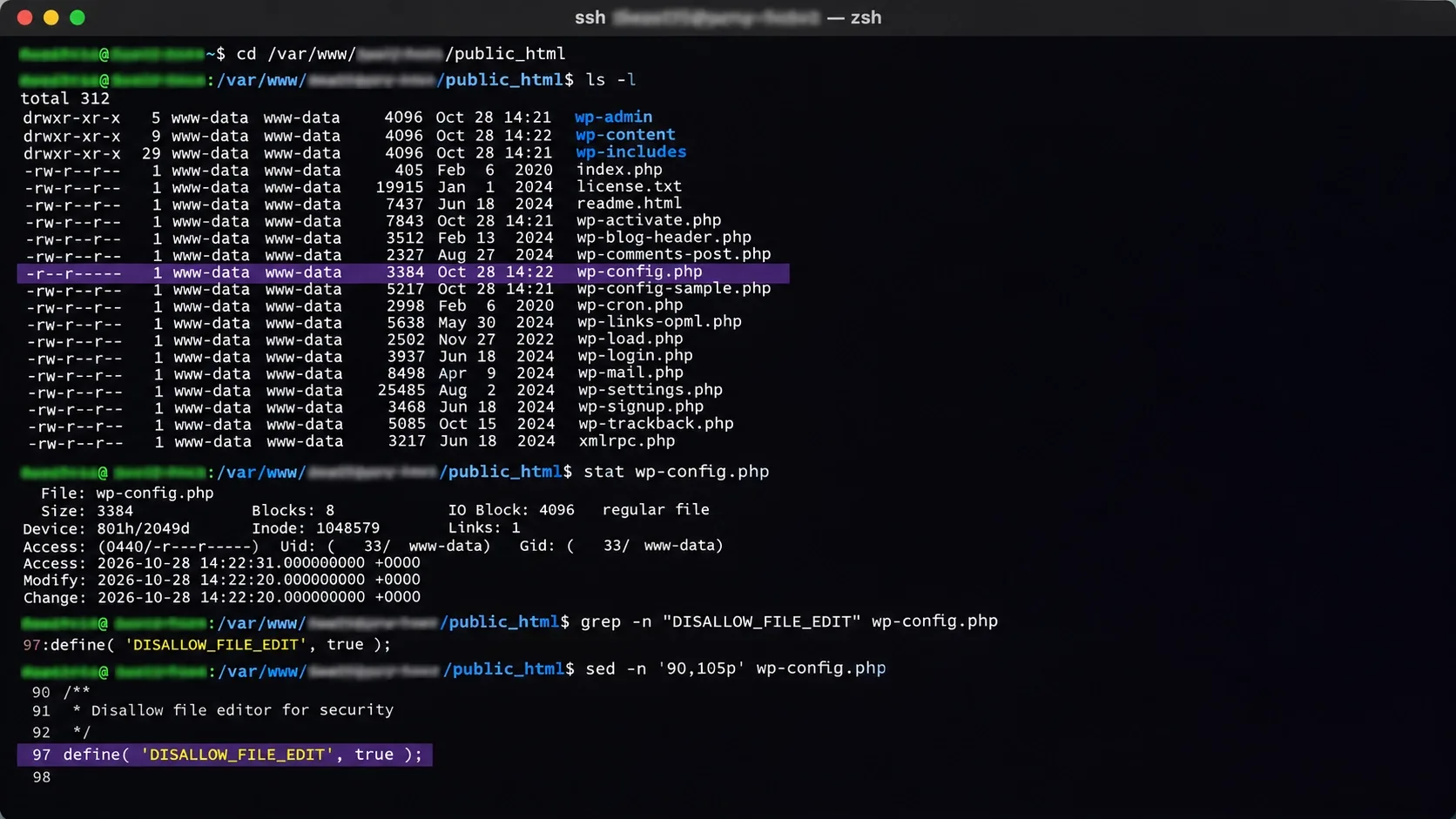
5. Hardening wp-config.php and Disabling File Editing
If an attacker gets into an admin account, the theme and plugin editor is the fastest way to plant a backdoor. It lets them rewrite PHP files from the dashboard in seconds.
Turn it off by adding one line to wp-config.php:
define( 'DISALLOW_FILE_EDIT', true );
The WordPress hardening guide is honest about this setting: it won't stop an attacker from uploading malicious files, but it can stop some attacks. Treat it as one layer.
- Permissions: directories at 755 and files at 644, as the guide sets out. Only wp-content needs to be writable by the web server.
- wp-config.php: set it to 400 or 440 so only you and the web server can read it.
- Uploads folder: block PHP execution there with a server rule. Images never need to run code.
- Fresh salts: rotate the keys and salts after any suspected breach, which logs everyone out.
On production, consider DISALLOW_FILE_MODS as well, so plugins can't be installed or updated from the dashboard. It only works if you deploy updates through a proper pipeline, which you should be doing anyway.
6. Neutralizing XML-RPC and Restricting the REST API
xmlrpc.php is a legacy remote-access file. It's a regular brute-force target, and the system.multicall method it offers has been abused to try many logins in a single request.
Most stores don't use it at all. WordPress's guidance says to disable it if you don't, and to restrict and rate-limit it hard if you rely on it for Jetpack or a mobile app.
- Block it at the server or WAF: return a 403 for /xmlrpc.php before WordPress loads. A plugin toggle still runs PHP for every hit.
- Check dependencies first: confirm no plugin or app on your side needs it before you block it.
The REST API needs more care, because WooCommerce uses it. Blocking it entirely breaks the block-based checkout and the Store API.
- Close the user list: /wp-json/wp/v2/users can reveal usernames to anyone. Require authentication for it, so scrapers can't harvest login names.
- Leave the Store API open, but limited: rate-limit it and watch it, as in the carding section.
- Protect WooCommerce REST keys: use read-only keys where possible, and rotate them when staff leave.
Customer lists leak when API keys do. Keys pasted into a shared document or committed to a repository are a quiet way in.
Locked-Down APIs Take Server Work, Not Another Plugin
Vareweb handles the audit, the staging tests, and the rollout for WooCommerce stores, with security monitoring after launch, so hardening doesn't break your checkout.
7. Implementing Content Security Policies (CSP) to Stop Magecart
Magecart attacks inject a few lines of JavaScript into a checkout page. The script copies card details as the customer types them and sends them to a server the attacker controls.
Nothing looks broken. Orders go through, and you find out weeks later from your payment processor or your bank.
The PCI Security Standards Council responded with its guidance on preventing e-skimming. It centers on PCI DSS requirements 6.4.3 and 11.6.1: authorize payment page scripts, check their integrity and monitor them for tampering.
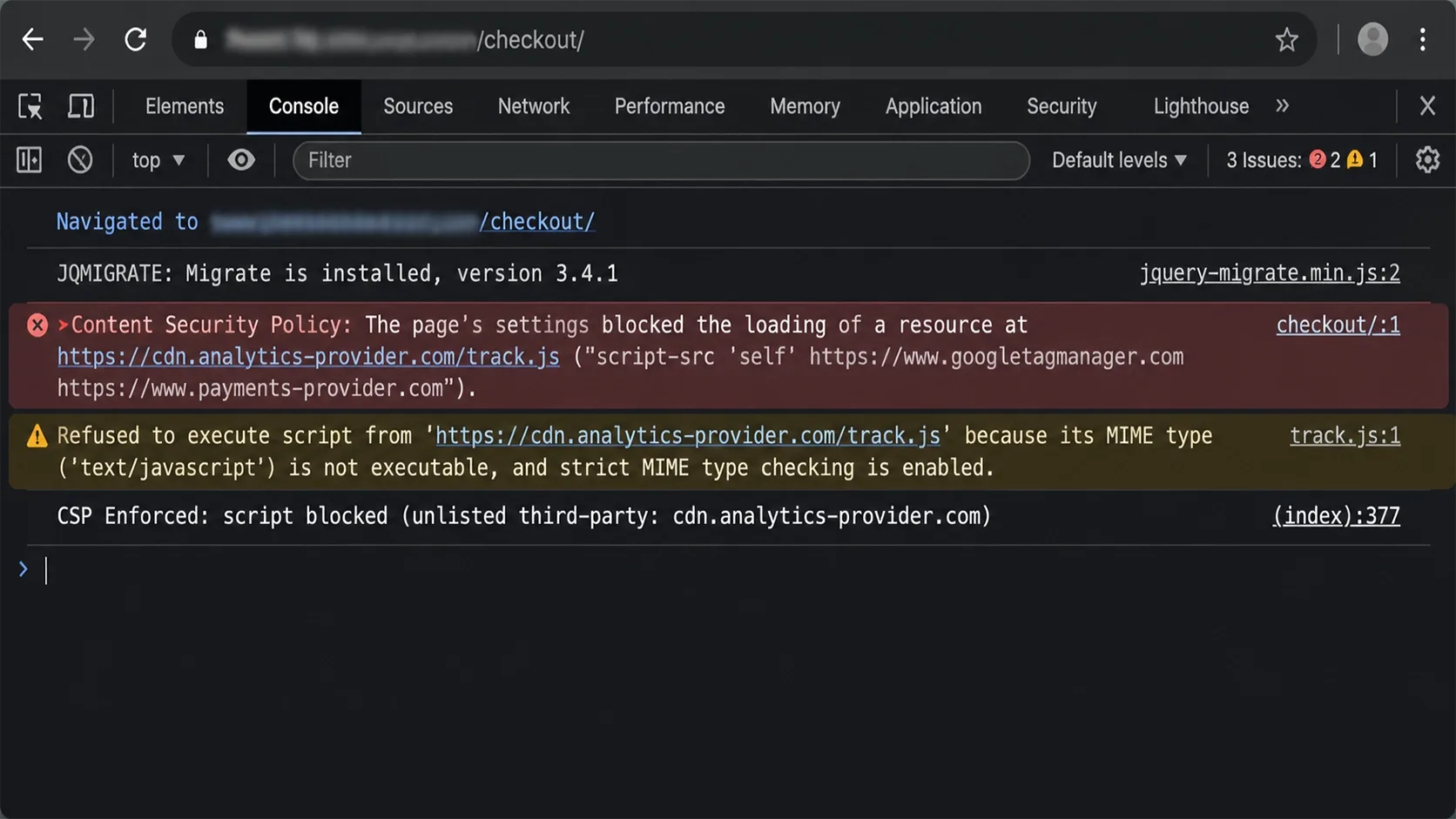
A Content Security Policy is how you enforce that in the browser. The CSP guide on MDN explains it as a header that tells the browser which scripts it may run, so an injected script gets blocked.
- Start in report-only mode: Content-Security-Policy-Report-Only logs violations without breaking anything, so you can build the allowlist from real traffic.
- Restrict `script-src`: allow your own domain, your payment provider and nothing else, using nonces for inline scripts.
- Use hosted payment fields: when card inputs live in the provider's iframe, a skimmer on your page can't read them.
- Cut third-party scripts on checkout: every chat widget, tracker and font loader is a door. Keep a written list of what runs on payment pages and why.
- Add the other headers: Strict-Transport-Security, X-Content-Type-Options and frame-ancestors cost nothing and close easy gaps.
8. Changing the Default wp_ Database Prefix
Many published SQL injection payloads assume your tables start with wp_. Changing the prefix means those copy-and-paste attacks hit tables that don't exist.
The WordPress hardening guide says the same: it can block at least some attacks, since many assume the default. It's a cheap speed bump, not a shield.
On a new install, pick a custom prefix at setup. On an existing store, I only change it with a fresh backup and a staging rehearsal, because the prefix also lives in option names and user meta keys that have to be renamed together.
- Real protection comes from patching: the vulnerable plugin is the actual hole, whatever your prefix is.
- Use a least-privilege database user: one user per site, allowed to connect only from localhost, never the root account.
- Don't share databases: two sites on one database means one hack takes both.
- Keep database ports closed: nothing outside the server should reach MySQL.
9. Zero-Tolerance Patch Management (Plugins and Themes)
Outdated plugins are where most stores get hurt. Patchstack counted 11,334 new WordPress vulnerabilities in 2025, up 42% from 2024, and 91% of them were in plugins.
The speed is the scary part. About half of the high-impact vulnerabilities were exploited within 24 hours, the median time to mass exploitation for heavily exploited ones was 5 hours, and 46% had no developer fix at the time of disclosure.
Here's a recent WooCommerce example. CVE-2026-27540 is an unauthenticated file upload flaw in the Wholesale Lead Capture plugin, rated 9.8 critical, affecting version 2.0.3.1 and earlier, with the fix in 2.0.3.2.
Wordfence blocked over 100,000 exploitation attempts against it. An attacker who uploads a PHP file this way can potentially take over the store, and the plugin had more than 6,000 active installs.
Waiting a month for a "good time" to update isn't a plan against that. Here's the routine I run:
- Staging first: clone production, apply updates, run a test checkout and a refund, then promote.
- Weekly window: routine updates go out on a set day, so they never pile up.
- 24-hour emergency path: critical vulnerabilities in plugins you run skip the queue.
- Subscribe to advisories: follow a vulnerability feed for the exact plugins on your site.
- Delete, don't just deactivate: unused plugins and themes still hold vulnerable code on disk.
Choosing plugins carefully reduces the work. Kashaf, our SEO Manager, compares well-maintained options in the 13 best WooCommerce plugins, and WooCommerce's own security best practices recommend installing from reputable sources.
Old themes and abandoned builds pile up risk too. I listed the technical signs that a rebuild is cheaper than patching in my guide on when and why to redesign your website.
Don't Have Time to Chase Every Plugin Patch?
Vareweb handles scheduled WordPress, theme, and plugin updates, security monitoring, and backups for WooCommerce stores, so critical fixes ship fast and nothing breaks at checkout.
10. Automated Malware Scanning and File Integrity Monitoring
You shouldn't learn about a hack from a customer. By then the attacker has had days to move around.
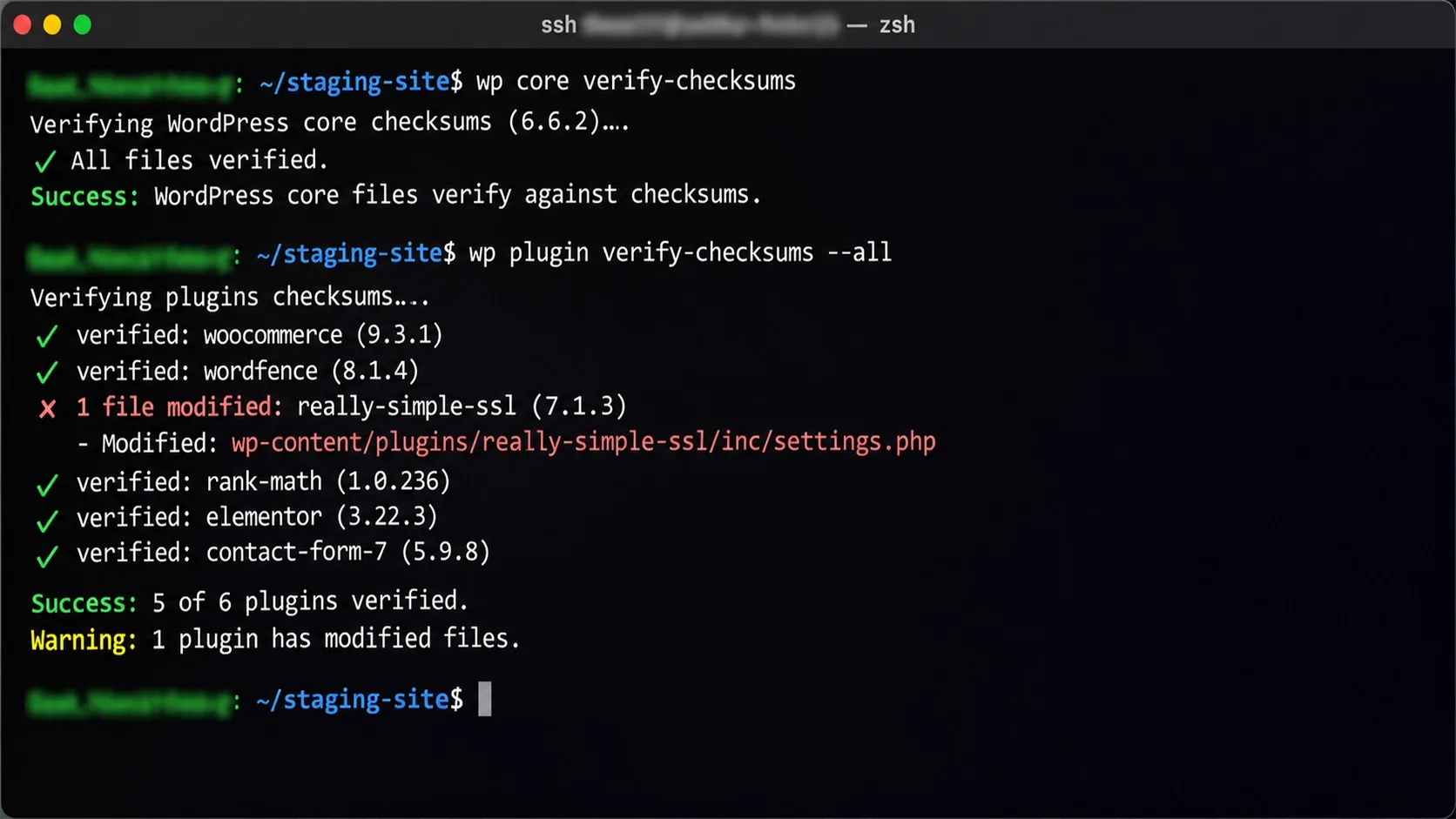
File integrity monitoring watches for changes you didn't make. WordPress ships with a good starting point in WP-CLI: wp core verify-checksums and wp plugin verify-checksums --all compare your files with the official versions.
- Run the checks daily: schedule them with cron and send failures to email or Slack.
- Watch for new PHP files: anything new in wp-content/uploads is suspicious by default.
- Alert on core and plugin changes: a modified wp-config.php or .htaccess should wake someone up.
- Add server-level monitoring: tools such as auditd or AIDE record file changes even when the attacker hides them from WordPress.
- Use a scanner as a second opinion: a malware scanner plugin catches known signatures, but it shouldn't be your only check.
Check Google Search Console for security issues and strange indexed URLs. Hacked stores often grow thousands of spam pages, and Kashaf, our SEO Manager, covers the cleanup side of index bloat in common WooCommerce SEO issues and how to fix them.
11. Locking Down Payment Gateways and TLS 1.3
An SSL certificate only proves the connection is encrypted. It says nothing about how well it's encrypted, or what happens on the other side of the connection.
- Protocols: enable TLS 1.3 and TLS 1.2, and turn off TLS 1.0 and 1.1 on your server and WAF.
- HSTS: send the header so browsers refuse plain HTTP for your domain.
- Webhook signatures: verify the signature on every webhook from your payment provider, and reject anything unsigned. Otherwise anyone can post a fake "payment succeeded" to your endpoint.
- Restricted API keys: give each integration only the permissions it needs, and keep secret keys out of code repositories and chat threads.
- Rotate after exits: change gateway keys when a developer or agency leaves.
Stripe also notes that card testers can reuse a publishable key to hammer your payment endpoints, and that a leaked secret key lets them create payments directly. Key hygiene is part of carding defense.
Use the gateway's hosted fields or redirect flow wherever possible. If card numbers never touch your server, there's far less for an attacker to steal and far less for you to defend.
12. Air-Gapped, Daily Off-Site Backups
Ransomware and destructive hacks go after backups first. If your backups live on the same server, the attacker deletes them along with everything else.
WooCommerce's guidance calls backups essential for recovering from security incidents and recommends off-site storage. I'd add that a backup you've never restored is a guess.
- Keep copies elsewhere: send encrypted backups to a separate cloud account, such as Amazon S3, with credentials that can write but not delete.
- Make them immutable: object lock or versioning stops a stolen key from wiping your history.
- Back up the database more often than files: a store taking orders all day loses real money if you restore a 24-hour-old database. Busy stores should take hourly dumps or use point-in-time recovery.
- Keep a retention window: infections can sit unnoticed for weeks, so keep older copies too.
- Run a restore drill: rebuild the site from backup on a clean server, time it, and write the steps down.
The timed drill gives you your real recovery number. Everything else is optimism.
A Store That Takes Orders Deserves Real Infrastructure
Vareweb sets up managed WooCommerce hosting on WP Engine, Kinsta, or Pressable, with object and page caching, database cleanup, and CDN delivery, so traffic spikes and attacks don't take your whole store down.
The Shared Hosting Trap: Why DDoS Takes Down Your Whole Server
Attack volumes keep climbing. Cloudflare's Q3 2026 DDoS threat report counts 18.2 million network-layer attacks mitigated in the quarter, up 208% from Q3 2025, plus 14.4 trillion HTTP DDoS requests.
The giant floods grabbed headlines. Attacks over 1 Tbps hit 805 in Q2 before dropping to 251 in Q3, a drop the report ties to law enforcement action against large IoT botnets.
Here's the part that matters to a store owner. In Q3, 96% of attacks ended in under 10 minutes and 98% stayed under 1 Gbps.
A ten-minute burst of modest traffic can flatten a small server. You don't need a record-breaking attack to lose a sales hour.
Layer 7 attacks are the worst fit for shared hosting. They look like real shoppers, with thousands of requests to product searches, cart pages and checkout that each force PHP and the database to work.
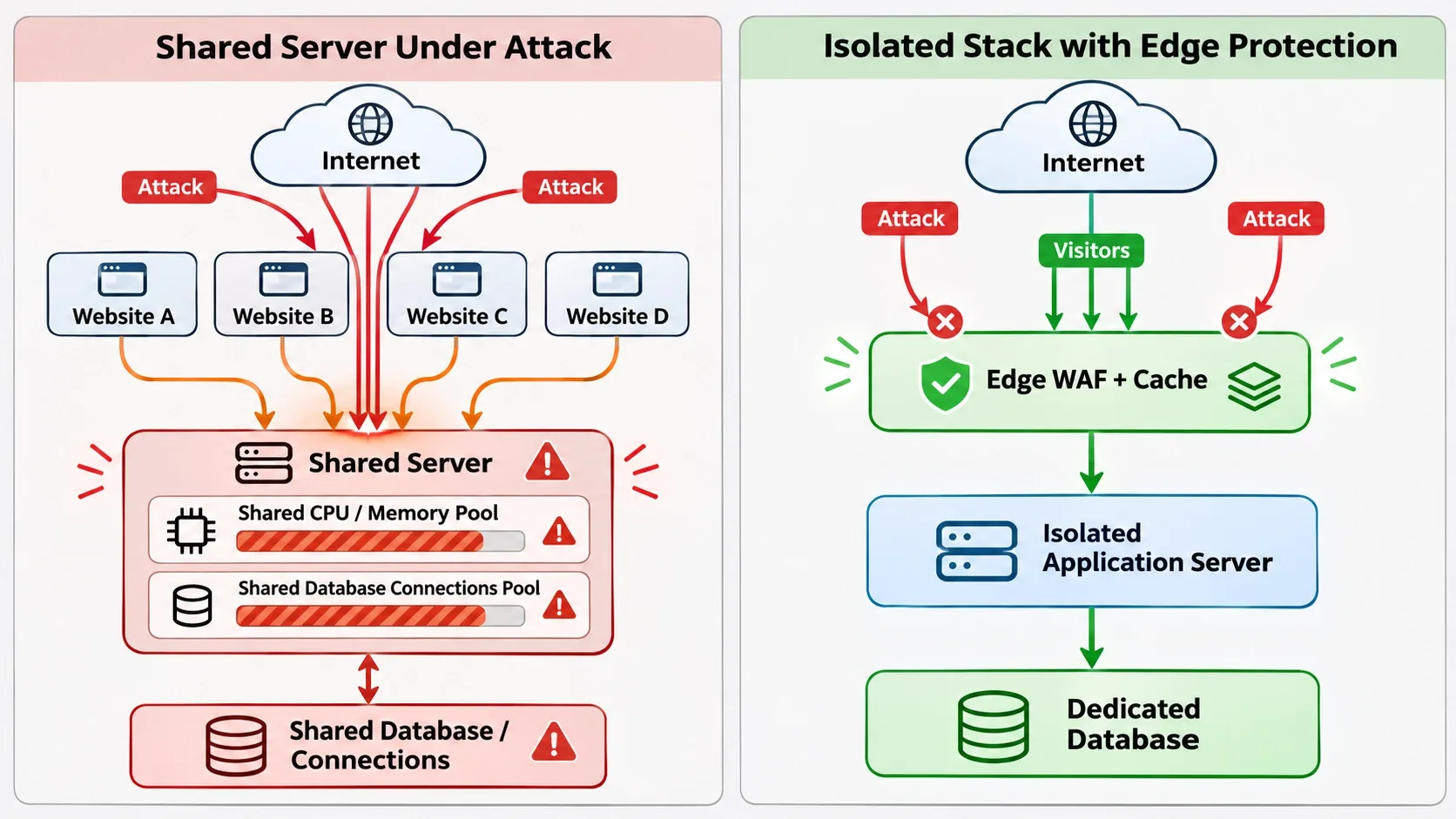
On a $20-a-month shared plan, you split CPU, PHP workers and database connections with hundreds of other sites. When your store spikes, the host's first priority is protecting everyone else.
Some hosts respond by suspending your account or null-routing your IP, which drops all traffic to it. Your store disappears, and legitimate customers disappear with it.
- Isolate the store: a VPS, dedicated cloud instance or container setup gives you your own resources, so a neighbor's problem or your own spike stays contained.
- Put an edge proxy in front: absorb floods and filter requests at the network edge, as in section one.
- Cache what you can: serve category and product pages from cache so a request flood doesn't hit PHP.
- Size PHP workers for peaks: limit them so one flood can't use up all database connections, and queue the rest.
- Separate the database: at high volume, a dedicated database server keeps the store alive when the web tier struggles.
I covered the performance side of this in my post on why your WooCommerce store is so slow. Most of what makes a store fast also makes it harder to knock over.
For stores past a certain order volume, the architecture decision belongs in an ecommerce development plan, not a hosting upgrade bolted on afterward.
FAQs
What is a carding attack and how does it affect WooCommerce?
Carding is when bots run lists of stolen card numbers through your checkout to see which ones work. It floods your gateway with declines, triggers fees and disputes, and can make real customers' cards fail because issuers start treating your store as risky. Rate limiting, a server-verified CAPTCHA such as Turnstile and protection on every payment endpoint are the fix.
Why is my WooCommerce store suddenly getting hundreds of fake spam orders?
Most of the time it's bots testing cards or abusing a public endpoint, and it often bypasses your checkout page entirely by calling the Store API or an AJAX endpoint directly. Check your logs for repeated requests to those endpoints, tiny order amounts and random-looking names or emails. Rate-limit those paths and add a server-verified challenge before you rely on a page-level CAPTCHA.
Is a free WordPress security plugin enough to stop hackers?
No. A plugin runs inside WordPress, so the attack has already reached your server before it acts, and it does nothing for DDoS traffic or a weak hosting setup. Use it as one layer next to an edge firewall, two-factor login, timely updates, file monitoring and tested backups.
How do I completely hide my WordPress login page?
You can move it to a custom URL with a lightweight plugin or a server rule, and you can restrict /wp-admin to specific IP addresses. Hiding it only reduces noise, though, so pair it with rate limiting and two-factor authentication. Keep admin-ajax.php reachable, because the front end depends on it.
What should I do immediately if my WooCommerce store is hacked?
Put the site in maintenance mode, take a copy of the files and database for investigation, and change every password, API key and the salts in wp-config.php. Restore from a clean backup taken before the infection, then patch the plugin or account that let the attacker in. Contact your payment provider, and check whether you have legal notification duties for customer data.
Does Cloudflare actually protect WooCommerce checkouts?
It can, when it's configured for it. That means proxying your traffic, bypassing cache on cart and checkout, adding rate limiting and a challenge on payment endpoints, and locking your origin server so traffic can't skip around it. It won't fix a vulnerable plugin by itself, so patching still matters.
Why do hackers target small WooCommerce stores?
They usually don't pick a store at all. Automated scanners sweep the internet for known vulnerable plugin versions and open login pages, and a small store with slow updates is just as easy a result as a large one. Small stores also tend to have weaker monitoring, so attackers stay inside for longer.
How often should I back up my WooCommerce database?
For a store taking orders through the day, back up the database at least hourly, or use point-in-time recovery, and back up files daily. Store the copies off-site and encrypted, and keep older versions in case an infection went unnoticed. Test a full restore every quarter so you know how long recovery really takes.
Want Your WooCommerce Store Secured Before the Next Attack?
Book a free call and Vareweb will tell you where your store is most exposed and what to fix first. We handle the audit, the build, the testing, and the ongoing monitoring.

Written by
Minhaj
Minhaj Ahmed is an experienced web and software development professional specializing in web applications, mobile apps, SaaS platforms, and AI-powered solutions. As Head of Development at Vareweb, he brings a strong software engineering background to building scalable digital products and automation systems. He writes about web development, mobile apps, AI, software engineering, and emerging technologies.