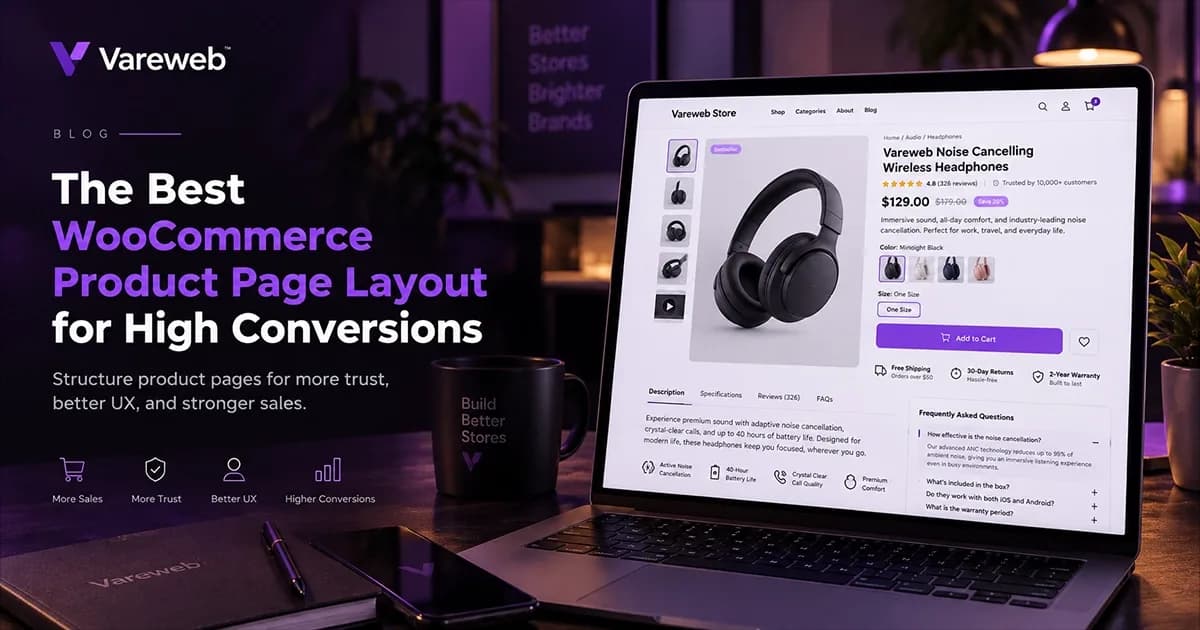
Quick Answer: The most profitable WooCommerce product page layout in 2026 puts the answers to a buyer's questions where the decision happens: a clear title, a fast image gallery, variation buttons instead of dropdowns, price, delivery and return information beside the Add to Cart button, a sticky Add to Cart bar on mobile and accordion-style details. It has to read well to humans and machines, so every price, rating and policy on the page must match the schema behind it. No layout guarantees a conversion lift, so test each change against your own data.
When I look at a WooCommerce store that gets traffic but not sales, I rarely start with the ad account. I open a product page on a phone and ask what a first-time buyer would still need to know before tapping Add to Cart.
The industry data says most stores fail that test. Baymard Institute's product page UX benchmark, updated in March 2026, found that 62% of 155+ leading ecommerce sites have mediocre or worse product page UX on mobile web. Those are large retailers, so it is worth checking where your own store stands.
Below is the layout I use as a starting point, with the psychology, the placement and the technical SEO implementation for every element. Treat it as a hypothesis to test, not a template to paste.
Getting Traffic but Not Sales? Your Product Page May Be the Leak.
Vareweb designs conversion-focused product pages with custom layouts, deliberate trust-signal and CTA placement, and user flows built for your specific buyer, then builds them fast.
Quick Overview: The Product Page Layout at a Glance
| Element | Common default | Better layout | SEO and technical note |
|---|---|---|---|
| Title (H1) | Short or keyword-stuffed name | Brand, product, key attribute, use case | One H1; matches the schema name |
| Gallery | Thumbnail strip, one hero image | Swipeable, large images, video in slot two | Never lazy-load the LCP image |
| Buy box | Dropdown variations, price only | Variation buttons or swatches, clear price, delivery date | Offer data must match visible price |
| Trust signals | Badges in the footer | Returns, shipping and security cues under the button | Return policy in schema and on page |
| Mobile purchase | Button scrolls out of sight | Sticky Add to Cart bar | Avoid layout shift and covered content |
| Details | Horizontal tabs | Vertical accordions | Keep content in the DOM and equal to desktop |
| Cross-sells | Generic related products grid | Curated bundles below the buy box | Real links and crawlable product URLs |
The Baseline: Why the Default WooCommerce Layout Bleeds Conversions
Let me be precise, because this claim gets repeated carelessly. WooCommerce does not force one layout on you. Most stores inherit whatever the theme ships, and those theme templates are built for the widest possible audience.
That is the gap. Customizing product pages beyond the default templates, with a focus on both conversion and speed, is the practical meaning of WooCommerce web design and optimization, and it starts by finding the actual friction rather than copying a competitor.
Here is the raw data on that friction:
- Mobile pages are weak overall. Baymard's mobile ecommerce benchmark, updated July 14, 2026, rated 75% of the mobile sites it tested as mediocre, with only one rated good.
- Dropdowns hide choices. In the March 2026 product page update, 57% of sites did not use buttons for size selection, which hides unavailable sizes until a menu opens.
- Return information is hard to find. 44% of sites did not link the return policy from the main product page, while Baymard cites survey data in which 60% of respondents looked for return information there.
- Cost surprises persist. 67% of sites did not show a total order cost estimate near the buy section.
- Tabs bury key content. Baymard's July 2026 update on horizontal tabs says 29% of sites still use them for main product page sections, and its testers repeatedly overlooked reviews, shipping and specs hidden behind them.
One more set of numbers keeps me honest. Littledata's October 2026 benchmark of 433 Shopify stores (July 20 to October 17, 2026) found a median conversion rate of 1.4%, with mobile at 1.6% and desktop at 1.5%.
The spread matters more than the median. The top 10% of stores converted at 3.6% or more, while the bottom 20% sat at 0.5% or below, so the gap between an average page and a well-built one is large.
Category changes the target as well. In the same data, beauty and skincare stores had a median of 2.9%, fashion and apparel 1.1%, and home and furniture 1.0%, so judge your own rate against your niche before deciding a page is broken.
These are Shopify stores, not WooCommerce, and a median hides a lot. They still show that mobile does not automatically convert worse, so check your own analytics by device first.
Before changing anything, I run a quick audit on a phone. These are the checks that surface most of the friction:
- Size and option check: can you see every option without opening a menu?
- Policy check: can you find returns and delivery cost without leaving the page?
- Button check: is Add to Cart still reachable after you scroll to the reviews?
- Speed check: does the first image appear quickly, and does anything jump as the page loads?
Is Your Theme's Generic Template Costing You Orders?
Vareweb audits your theme, plugins, and hosting, then rebuilds weak product pages on custom WooCommerce themes that load fast and keep your buy box clear on mobile.
I also link layout problems to indexing problems where they overlap. I covered the technical side in my earlier guide, Common WooCommerce SEO Issues and How to Fix Them.
The Anatomy of the Best WooCommerce Product Page Layout for High Conversions
A product page has one job: remove friction and transfer confidence. Each of the seven elements below has a psychological reason, a placement rule and a technical implementation.
1. Product Title Structuring (For Humans and Bots)
The psychology. Shoppers scan the title to confirm they landed on the right thing. A clear title answers what it is and who it suits in one glance.
The placement. Keep a single H1 above the price, inside the buy box area on desktop and directly under the gallery on mobile. Do not split it across lines with brand badges or labels that push the price down.
A formula I start from is brand, core product, defining attribute or material, and use case. A generic example would be "Brand Name Merino Wool Hiking Socks, Cushioned, for Cold Weather", which reads like a descriptor, not a keyword list.
- For humans: lead with the product name they would search and the one attribute that decides the purchase.
- For bots: include the core entity and attributes, and make the H1, the page title and the schema name
- Avoid: stuffing every variation or keyword in, which reads as spam and weakens trust.
The technical implementation. Check that your theme prints one H1 and that your SEO plugin and WooCommerce are not both writing different titles. Duplicate or conflicting markup is a common cause of messy search snippets.
If your category pages link to these products, the same naming logic helps there too, which I explain in How to Optimize Ecommerce Category Pages for SEO in 2026.
How to test it. Compare your own title variants only when traffic is high enough to detect a real difference, and watch click-through in Search Console alongside add-to-cart rate. A title that wins clicks but loses sales is attracting the wrong buyer.
Look at the entities. Brand, model, material and size each tell a buyer or a search system what the product is, so keep them in a consistent order across your catalog.
2. The Visual Hook (Product Gallery and Video)
The psychology. Buyers cannot touch the product, so the gallery is the only substitute. Baymard's March 2026 update found 37% of sites did not provide in-scale images, even though it reports 42% of users try to judge size from images.
The placement. Make the gallery the first thing under the title on mobile, with large swipeable images and visible position dots instead of tiny thumbnails. Include in-scale shots and, for apparel and cosmetics, a human model image, which 23% of sites in the benchmark lacked.
Baymard's June 2026 gallery update found that 75% of mobile sites now use indicator dots instead of thumbnails. In its tests, one participant never realized she could swipe to a hidden image showing a table's leaf feature, and another decided two mug sizes looked identical because the size comparison image was hidden in the carousel.
The lesson is signposting. If a gallery hides images, show a partial next image, a counter such as "2 of 9" or clear dots so buyers know more exists.
- Aspect ratio: keep every image the same ratio, such as 1:1 or 3:4, so the layout does not jump.
- Video: put a short product video in the second slot so it supports the images without blocking them. Host it so it does not load before the first image.
The technical implementation. The main product image is usually the LCP element. Google's LCP optimization guide says never to lazy-load the LCP image and recommends fetchpriority="high" on it.
- Format: serve WebP or AVIF where supported and size images to the layout, not the camera.
- Dimensions: set width and height so the gallery does not cause layout shift.
- Zoom: keep a high-resolution version for zoom, loaded only on interaction.
I covered the ranking side of speed in How Important Is Page Speed for SEO in 2026?, a post I wrote earlier this year.
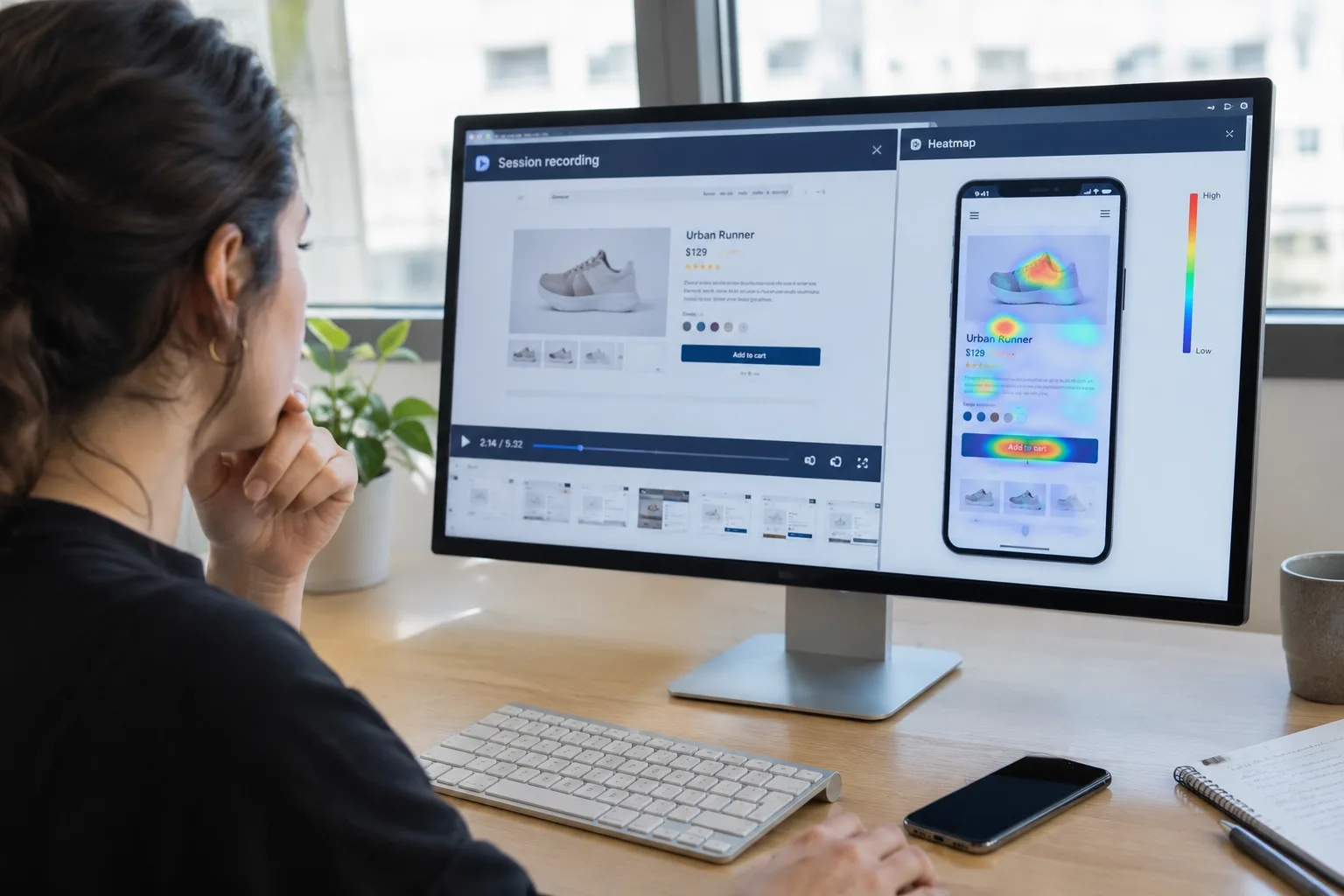
How to test it. Use session recordings to see whether buyers swipe the gallery, tap thumbnails or ignore it. If most visitors never leave the first image, the other images are not earning their weight.
Compare mobile and desktop separately, because a gallery that works on a large screen can be awkward on a phone.

3. The Buy Box Psychology (Pricing, Swatches and Urgency)
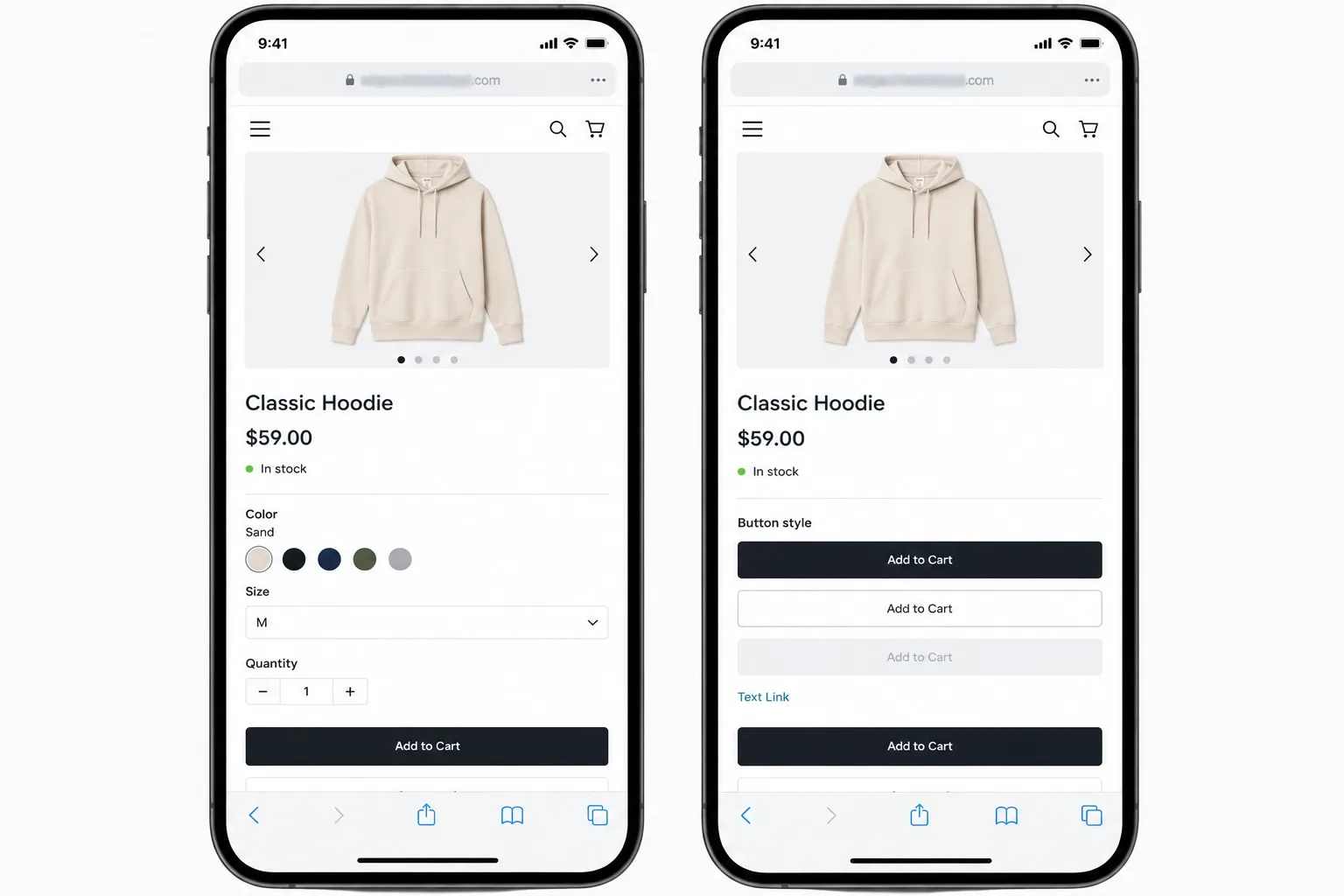
The psychology. The buy box is where hesitation peaks, so every extra tap costs you. Native dropdowns make buyers open a menu to learn what exists, which is why Baymard's 57% figure for sites without size buttons matters.
The placement. Put price, variation controls, stock status, delivery information and the Add to Cart button together, in that order, above the fold on mobile where possible.
- Variation buttons and swatches: show every size or color as a visible button. Mark unavailable options clearly instead of hiding them.
- Price clarity: show the current price, and show the original price only if it was genuinely charged. Fake anchors damage trust.
- Delivery information: a line such as "Order within 2 hours to get it by Thursday" works only when the cutoff is real and calculated, not a fixed timer.
- Total cost: show shipping or a shipping estimate near the button, since 67% of benchmarked sites did not.
Baymard's July 2026 mobile benchmark also found 73% of sites did not show all color swatches in mobile list items, which is a category page problem you can fix with the same swatch component.
The technical implementation. WooCommerce variations are powered by JavaScript that updates the price and availability. Test that every swatch change updates the visible price, the Offer data and the stock text in step.
- Watch INP: heavy swatch plugins can slow the response after a tap. Measure on a mid-range phone.
- Keep one price source: theme code and plugins should not each print their own price markup.
How to test it. Segment by device and by whether a variation was chosen. If many sessions reach the buy box and leave without selecting an option, the control itself is the friction.
Check error states too: what happens when a buyer taps Add to Cart before choosing a size, and does the message appear where they are looking?
4. Trust Badges and Micro-Copy Placement
The psychology. Doubt peaks at the moment of commitment, so reassurance has to sit there. A badge in the footer answers a question the buyer asked three screens ago.
The placement. Put short return, shipping and payment-security lines directly beneath the Add to Cart button. Link the full policy from there.
The data supports the return part. Baymard's March 2026 update says 15% of 1,026 respondents abandoned an order over an unsatisfactory return policy, 60% of 1,032 respondents looked for return information on the product page, and yet 44% of sites did not link it from there.
- Use specific copy: "Free returns within 30 days" beats a generic shield icon, but only if it is true.
- Limit badges: two or three real ones, such as payment methods and a warranty, are enough. A wall of icons looks defensive.
- Do not fake it: never display a badge, certification or review count you cannot back up.
I will not quote a lift for moving a badge, because it varies by store and I would be inventing a number. Test it with a controlled split and your own conversion data.
The technical implementation. Use real text for micro-copy, not an image, so it is readable by screen readers, search engines and translation tools. Keep the policy text consistent with your MerchantReturnPolicy markup, which I cover below.
How to test it. Run the policy lines against a control with a clean split, and track add-to-cart rate, checkout starts and returns-related support questions. Fewer pre-purchase questions in your inbox are a useful secondary signal.
Great Layout Rules Still Need Great Design Execution
Vareweb's UI/UX team designs product pages around your buyer's journey, from the gallery to the buy box to the mobile thumb zone, and hands over designs developers can build without guesswork.
5. The Sticky Add-to-Cart Bar (Mobile Necessity)
The psychology. On a long mobile page, the buy button scrolls away while the buyer reads reviews and specs. A sticky bar keeps the next step in reach.
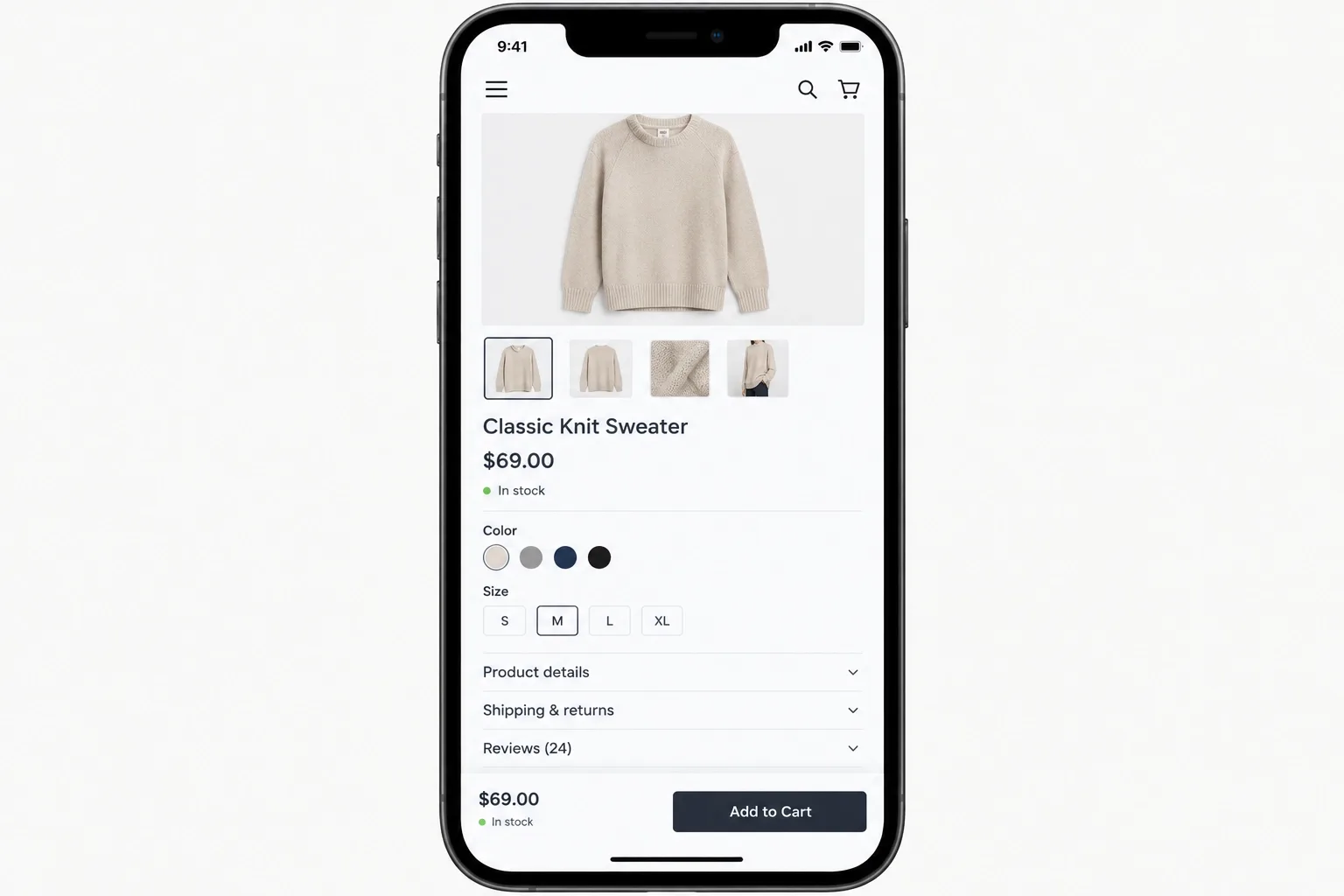
The placement. Show a slim bar at the bottom of the viewport after the main button scrolls out of view. Include the product name or thumbnail, the price and the button, with the variation chosen first or the bar opening the selector.
I do not accept the common claim that a sticky bar adds a fixed percentage to conversions, because I cannot find a verified benchmark for it. It is logical, it is cheap to test and the result depends on your page length and audience.
- Do not cover content: the bar must not hide consent banners, chat buttons or form fields.
- Respect the thumb zone: use a large tap target and clear spacing.
- Handle variations: if no option is selected, scroll to the selector or open it, rather than adding the wrong item.
The technical implementation. Reserve space for the bar so it does not shift the layout, and avoid heavy scroll listeners that hurt responsiveness. I covered the interface side of Core Web Vitals in 11 Best UI/UX Design Tips for Flawless Core Web Vitals.
How to test it. Split test the bar on long pages first, where the button scrolls furthest away. Track add-to-cart rate and check that checkout starts do not drop because of accidental taps.
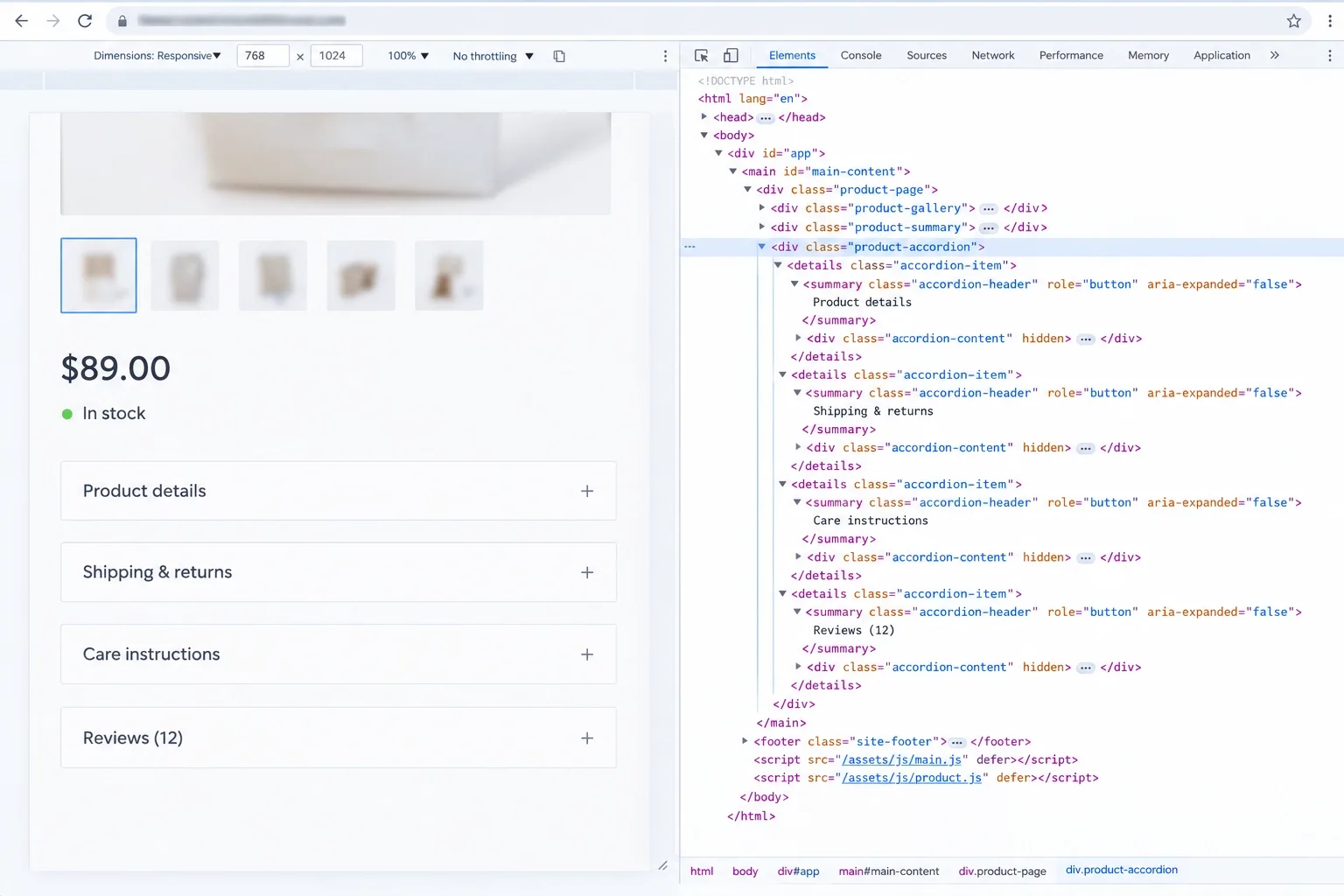
6. Accordion-Style Descriptions (Replacing Legacy Tabs)
The psychology. Buyers want specific answers, such as material, size, care and shipping, not a wall of text. Accordions let them open only what they need.
The placement. Stack short vertical sections under the buy box: description, specifications, shipping and returns, reviews. Open the most useful one by default.
Baymard's testing explains the problem. Tabs are not sticky, so they scroll out of view, and on mobile some sit off-screen and need a sideways swipe to find. With 29% of sites still using them, fixing this is a cheap way to stand out.
- Why not tabs: horizontal tabs can be awkward on narrow screens and hide content behind small targets.
- Where tabs still work: Baymard says they suit switching between subsections inside one section, such as specification groups, if you keep it to two or three on mobile.
- Keep it scannable: use short paragraphs and bullet specs, not one long block.
The technical implementation. Does Google index collapsed text? According to its mobile-first indexing guidance, moving content into accordions or tabs on mobile is fine, as long as the content is equivalent to the desktop version.
- Keep it in the DOM: content should be in the page HTML, not loaded only after a click.
- Use accessible controls: real buttons with aria-expanded and keyboard support.
- Check parity: the mobile and desktop versions should carry the same information.
How to test it. Track which sections buyers open with click events, and keep that data separate from conversion. If almost nobody opens shipping and returns, move the key line out of the accordion and under the button.
7. Strategic Cross-Sells vs. Unrelated Related Products
The psychology. A grid of loosely related products invites the buyer to wander off before deciding. A bundle that completes the purchase keeps attention on one decision.
The placement. Put a small set of items that genuinely go together directly under the buy box, for example accessories or a matching item. Move the broader related grid lower on the page.
- Curate by logic: pair items by use, compatibility or what customers actually buy together, not by tag.
- Limit the choices: two to four items, with a clear total price.
- Be honest: do not push irrelevant add-ons just to raise order value.
I will not promise an average order value increase, since it depends on product mix and price. Track add-on rate and AOV in a test so you know whether it helps.
The technical implementation. Use real, crawlable product links so related pages stay connected, and keep the extra items from loading heavy scripts. Better internal linking between products and categories also supports discovery.
How to test it. Watch add-on rate, average order value and the share of orders that include a bundled item. Also check that the bundle does not delay the first image or buy box.
The Hidden Layer: AEO, JSON-LD Schema and Search Engine Visibility
A great layout means little if search engines and AI systems cannot read it. The code layer has to describe exactly what the shopper sees.
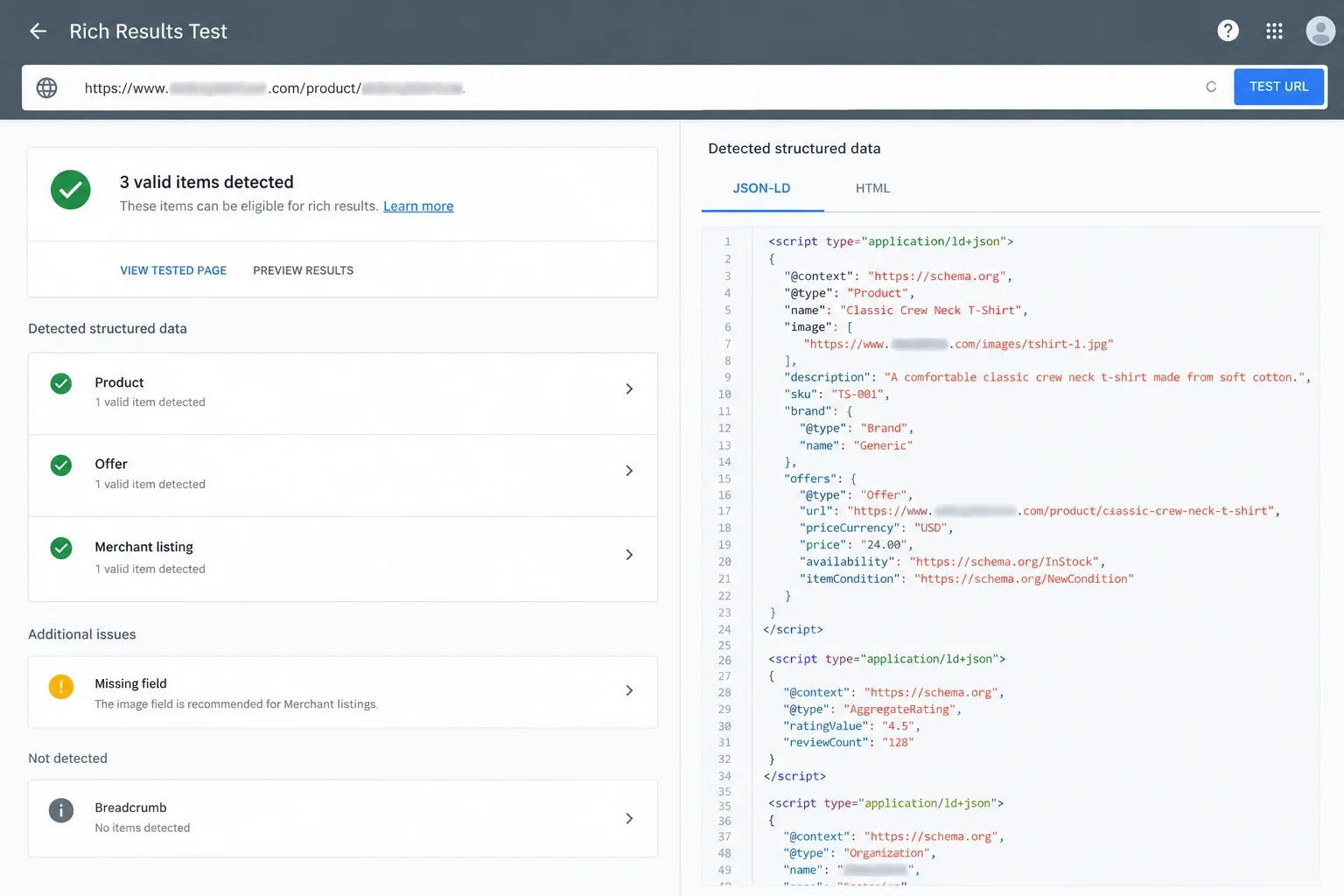
Google's product structured data documentation says a product snippet needs a name and at least one of review, aggregateRating or offers. Inside offers, a price is required, priceCurrency is needed for merchant listings, and availability and priceValidUntil are recommended.
- Product: name, description, image and identifiers such as SKU, GTIN or MPN where you have them.
- Offer: price, currency, availability and a valid priceValidUntil. Google warns that a past date may stop a snippet from showing.
- AggregateRating: only if the ratings are real and visible on the page.
- MerchantReturnPolicy: describe your returns in markup so they match the page.
For returns, Google's MerchantReturnPolicy documentation lets you set a store-wide policy under Organization with hasMerchantReturnPolicy and override it per product in Offer. It requires either applicableCountry with returnPolicyCategory, or a merchantReturnLink, and merchantReturnDays when the window is finite.
Shipping has its own markup. Google's merchant listing guidance places shippingDetails under Offer, with a shipping rate, destination and delivery time, so the "arrives Thursday" line beside your button can be mirrored in code. The Offer also has to come from the merchant as the seller, and Google recommends crawlable images in 16x9, 4x3 and 1x1 ratios.
Precedence matters too. Settings in Merchant Center or Search Console override on-page markup, so conflicting data is resolved by that order, not by what is easiest.
I walked through the markup structure in my guide, How to Structure Product Schema for AI Overviews and ChatGPT Citations. If you are choosing a tool to manage it, I compared the options in Best SEO Plugin For Wordpress.
Schema That Matches Your Page Is Worth More Than Schema That Just Exists
Vareweb's ecommerce SEO team optimizes product pages, product schema, and shopping feed alignment together, so what shoppers see, what search engines read, and what AI answers cite all agree.
Think of schema as a mirror of the page, not a second page. When the visible price, stock, rating and policy change, the markup has to change at the same moment, from the same data source.
- One owner: WooCommerce, your theme and your SEO plugin can each print product markup. Pick one source and switch the others off.
- Match the page: if schema says in stock and the button says sold out, fix the source.
- Validate: run key templates through Google's Rich Results Test after every theme or plugin change.
Does this data feed AI Overviews, Google Shopping and answer engines? It makes your product facts easier to understand, but nothing guarantees a citation or a rich result. Google also says no special AI markup is needed.
FAQs
Do long product descriptions hurt WooCommerce conversion rates?
Not by length alone, but a long unstructured block is hard to read on a phone. Put key facts above the fold, use accordions for details and keep the full text in the page HTML. Test shorter and longer versions on your own traffic.
Should I hide the price until the user selects a product variation?
Usually no, because a hidden price creates doubt and Baymard's 2026 data shows many sites already struggle with cost clarity. Show a price or a "from" price immediately and update it when a variation is chosen. Make sure the schema price matches what the shopper sees.
How do I change the default WooCommerce layout without knowing how to code?
Start with your theme's customizer or the block editor's Single Product template, and add a reputable plugin for swatches or a sticky bar if you need one. Make changes on a staging site first, because layout plugins can slow the page or break variations. Test on a real phone and run a test order before going live.
Are trust badges still effective for eCommerce in 2026?
Specific, truthful reassurance still matters, but a generic badge image is weak. Baymard's data shows return information is something shoppers look for on the product page, so clear return and shipping lines near the button are more useful. Test any badge instead of assuming it helps.
How does page speed impact my product page conversion rate?
Slow pages add friction, and slow loading also hurts search visibility. Google's good thresholds are LCP of 2.5 seconds or less, INP of 200 milliseconds or less and CLS of 0.1 or less at the 75th percentile. Measure your own field data and fix the main image, scripts and layout shifts first.
Should I include social share buttons on my product page?
Usually not. They add scripts, pull attention away from the buy button and rarely help a first purchase. If you keep them, load them lightly and place them below the main purchase area.
How many product images should a high-converting page have?
There is no verified magic number for conversions, so I will not invent one. Baymard's 2026 gallery research suggests showing all thumbnails is likely the easiest option up to about 10 to 14 images on desktop, and past that you need clear signposting. Cover key angles, scale and use, add a model image for apparel and cosmetics, and remove duplicates that add weight without information.
Want a WooCommerce Product Page Built to Convert?
Vareweb handles the design, the build, the schema, and the speed work, so your product pages load fast, read clearly on mobile, and turn visitors into customers. Book a free call and we'll tell you where to start.

Written by
Kashaf
Kashaf is a veteran SEO specialist with deep expertise in AI SEO, generative engine optimization, ORM, web strategy, and marketing automation. With a Master's in Computer Science, he blends search strategy with technical insight into websites, automation workflows, and AI-driven platforms, helping brands dominate traditional search while adapting to the future of AI-powered discovery.