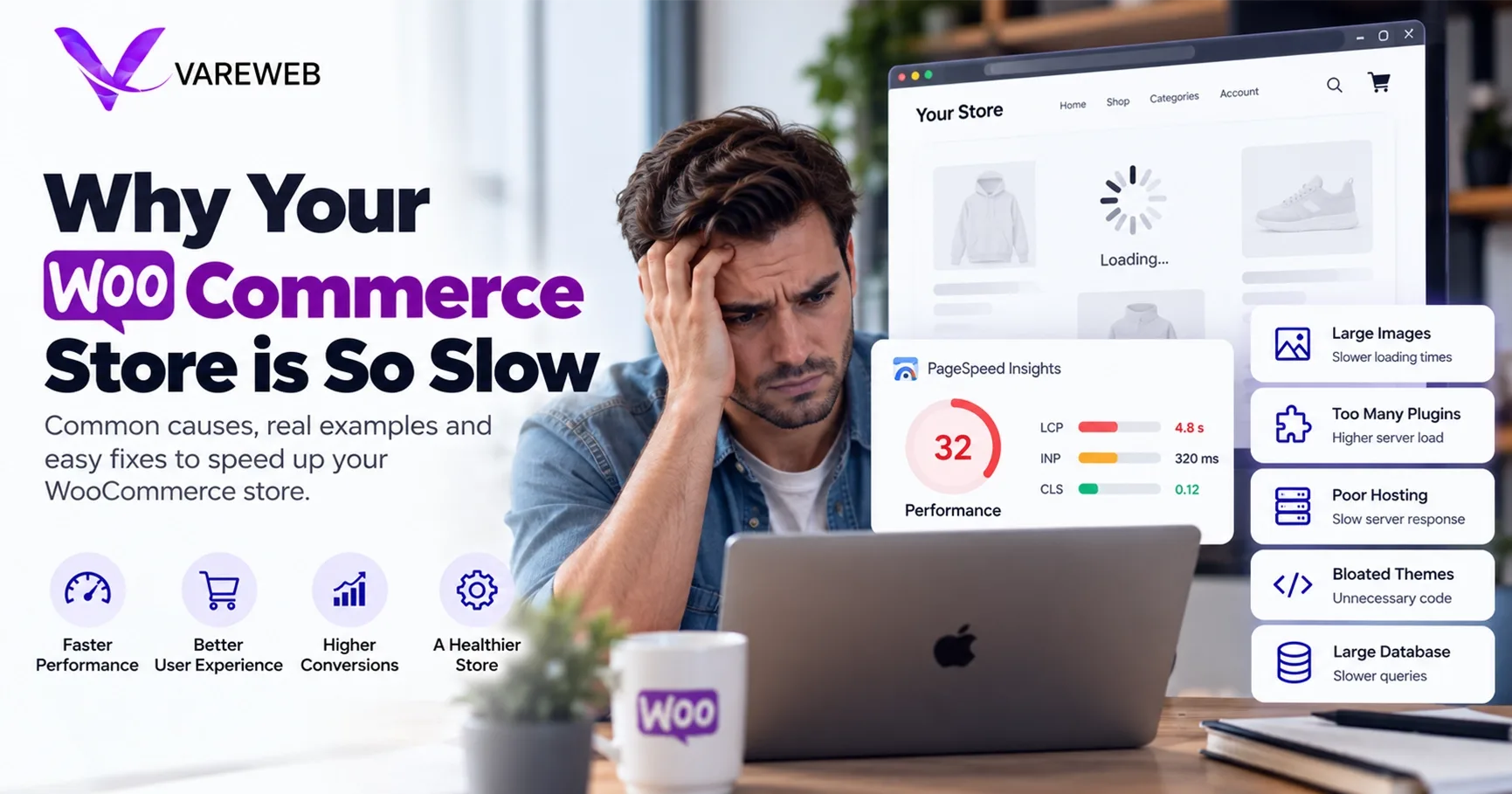
Quick Answer: Your WooCommerce store is slow because it is a heavy, database-driven PHP application, and most of the cost comes from uncached cart requests, bloated database tables, missing object caching, a heavy theme and background jobs that run during customer page loads. Installing another speed plugin or buying a bigger server rarely fixes that. You fix it in the code, the database and the server configuration, and a store that misses Google's Core Web Vitals thresholds will keep paying for it in conversions and organic visibility.
Whenever a client tells me their WooCommerce checkout is freezing, the first thing I check is not their server RAM. I check the database, the scheduled tasks and what the theme loads on every page.
The numbers explain why this keeps happening. Store2x's Shop System Performance Report 2026 used July 2026 Chrome UX Report data and found that 45.6% of 416,199 WooCommerce sites passed all three Core Web Vitals on mobile, against 81.8% for Shopify. Store2x is a Shopify migration agency, so read the framing with that in mind, but the gap was driven mainly by LCP, which is a loading problem, not a design one.
WooCommerce is not inherently bad. It is fundamentally heavy, and heavy things need engineering. Here is the technical reality of what is slowing your store down and how we fix it at the code level.
Find the Real Bottleneck Before You Pay for More Hosting
Vareweb audits your plugins, theme, and hosting, then fixes what's actually slowing your store down. Our WooCommerce builds average a page load under 1.5 seconds.
Quick Comparison: Bloated vs. Optimized WooCommerce
| Metric | Bloated default WooCommerce | Engineered and optimized WooCommerce |
|---|---|---|
| Cart AJAX requests | Cart fragments fire on pages that never show a cart, via a legacy widget or hard-coded theme | Mini-Cart block or limited fragments, so non-shop pages make no cart request |
| Database work per page | Repeated identical queries, large autoloaded options, leftover plugin data | Persistent object cache, small autoload, cleaned tables |
| TTFB | Slow server response from uncached queries and heavy plugins | Near or under the 0.8-second rough guide from web.dev |
| INP | Theme and tag scripts block the main thread | Lean theme, deferred third-party scripts, INP at or under 200 ms |
| Product search | Default query scans titles and content with LIKE | Dedicated search index offloads the database |
| Background tasks | WP-Cron fires on customer visits; stuck actions pile up | System cron runs tasks; Action Scheduler monitored and trimmed |
| PHP | Outdated version without tuned OPcache | Supported PHP 8 release with OPcache configured |
| Images | Large uploads served from the origin | Resized, modern formats, served from an edge CDN |

The Engineering Reality: Why Your WooCommerce Store is So Slow (And How to Fix It)
In my experience leading the engineering team at Vareweb, most WooCommerce speed problems come from poorly coded themes and unoptimized database queries, not from the server. I will not put a percentage on it, because every store is different, but the pattern repeats.
Work through these twelve in order. Measure before and after each change, and use field data, not just a lab score.
Here is the toolkit I use before changing anything:
- Field data: Search Console Core Web Vitals and PageSpeed Insights, which show what real shoppers experienced.
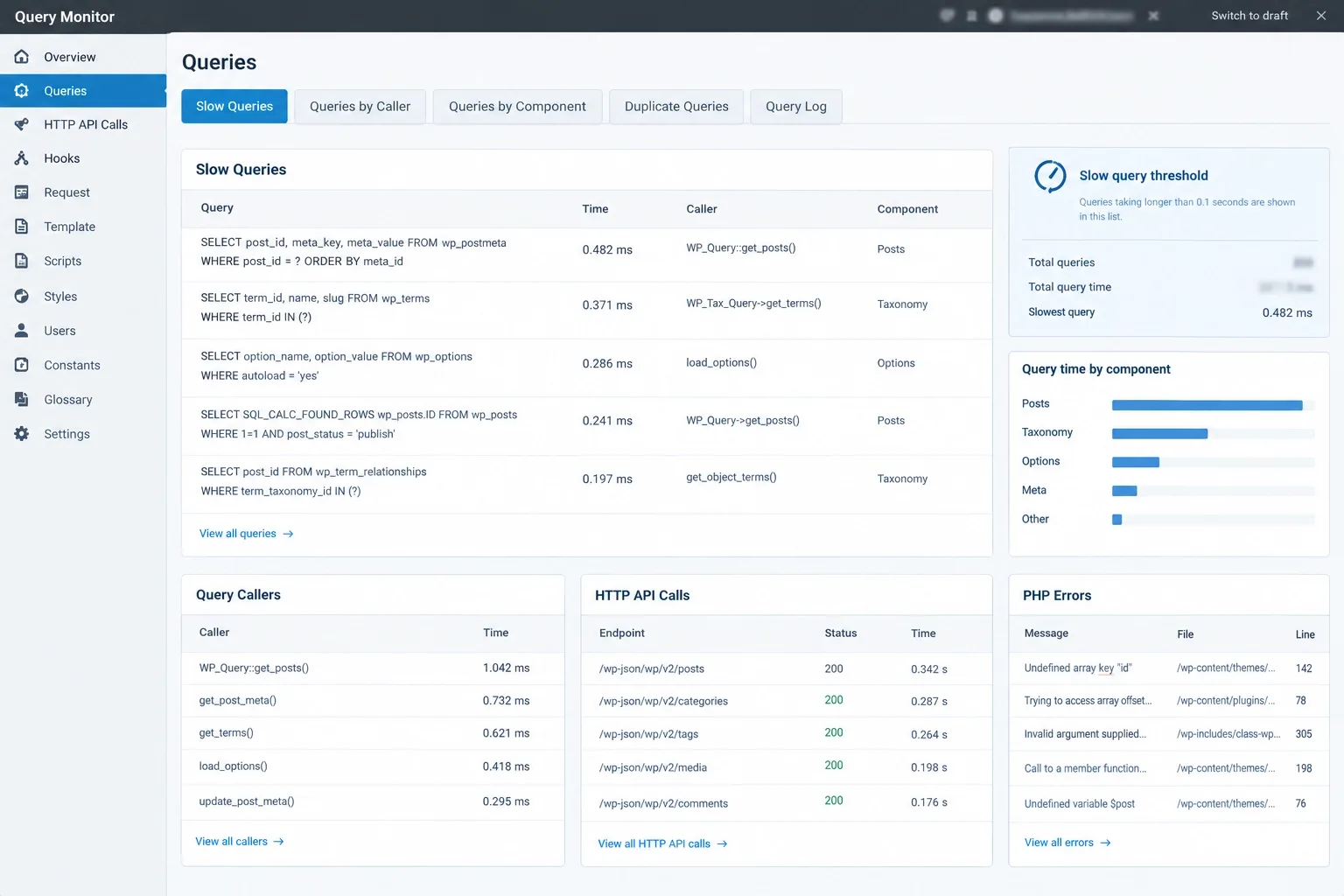
- Query Monitor: slow queries, their callers, HTTP API calls and PHP errors for a single template.
- Browser DevTools: the Network panel for requests and the Performance panel for long tasks.
- WP-CLI and server logs: autoload size, cron events, failed actions and PHP error logs.
Test product, category, cart, checkout and account pages separately. The homepage is not the whole store.
1. The wc-ajax=get_refreshed_fragments Bottleneck
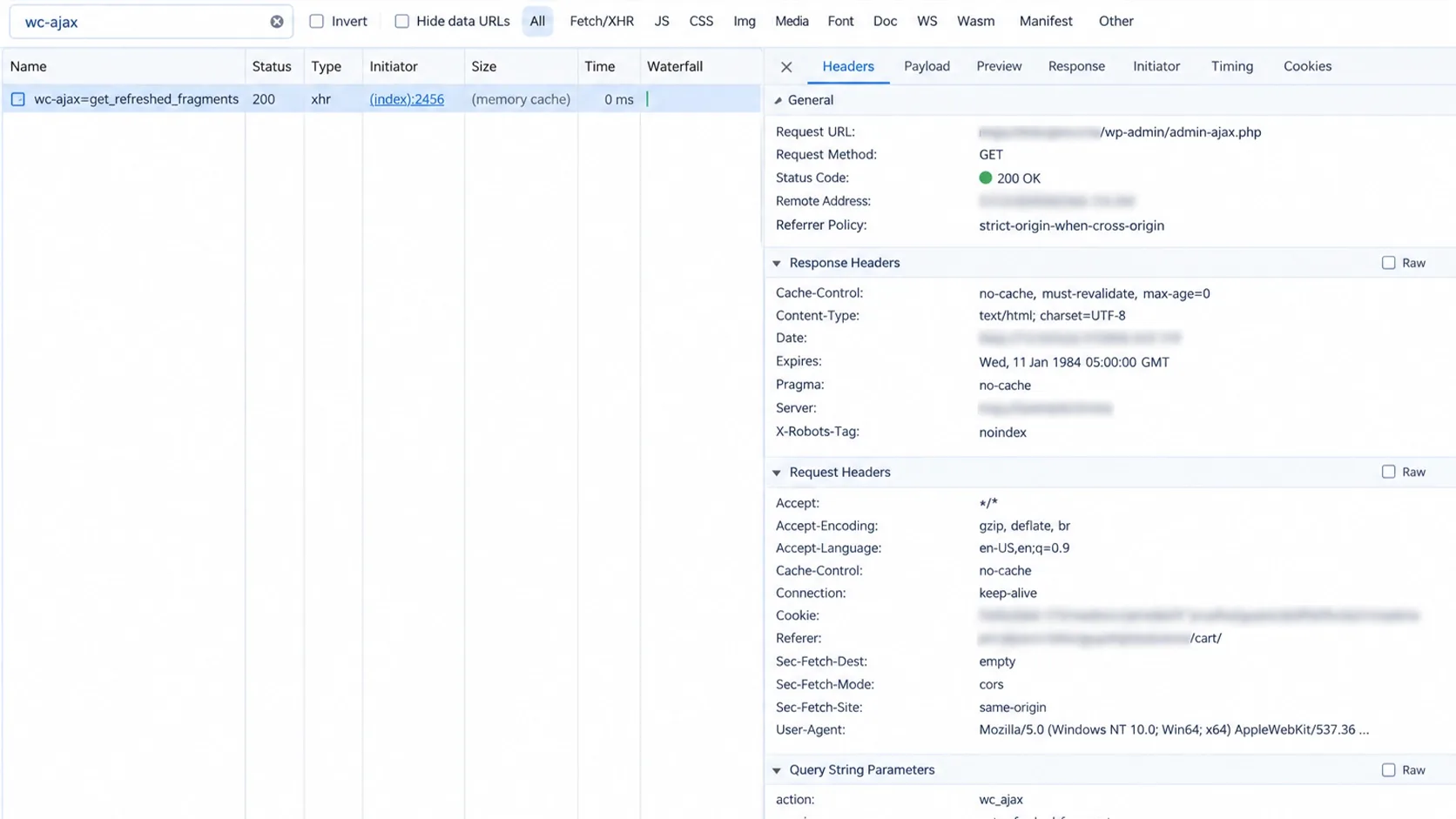
Here is the hard truth about this famous bottleneck: part of what you have read is out of date. WooCommerce uses an uncached AJAX call, ?wc-ajax=get_refreshed_fragments, to update the mini-cart without reloading the page.
Before WooCommerce 7.8, the script behind it loaded on every page. According to the WooCommerce developer blog, since 7.8 it loads only when the cart widget is rendered, when another script depends on it or when code enqueues it. Themes that hard-code the widget, such as Storefront, still trigger it.
Open the Network panel on your homepage and filter for wc-ajax. If you see the request on a page with no cart, something is loading it.
- Fix 1: switch to the Mini-Cart block, which does not use the cart fragments API.
- Fix 2: limit where the script runs with the woocommerce_get_script_data Test custom pages afterward, because they can end up with a stale mini-cart.
- Fix 3: find the plugin or theme registering cart-fragments as a dependency and remove it from pages that do not need it.
- What can break: a cart count that does not update after add-to-cart, or a mini-cart that shows stale items on cached pages.
- How to verify: add a product, move between a cached page and the cart, and confirm the count and totals match on every page.
The fix is cheap. Removing the script blindly is not, because cart counts can go stale.
2. Database Bloat: The wp_options and Transients Chaos
Every plugin you have ever installed may have left rows behind in wp_options, and WordPress loads every row flagged as autoload on every request. When that autoloaded data grows into megabytes, it slows the TTFB before a single product renders.
Transients are temporary cached values stored in the database. Expired ones can linger, and abandoned plugin options can sit there for years.
- Measure first: total autoload size and the largest autoloaded rows, using WP-CLI, Query Monitor or your host's database tools.
- Identify owners: match large rows to the plugin that created them. Never delete a row you cannot attribute.
- Clean on staging: remove orphaned post meta and expired transients, switch large options to non-autoload where the owner allows it and re-measure.
- What can break: a plugin that reads an option you changed, or settings that disappear because the plugin expected them to be autoloaded.
- How to verify: compare TTFB on the same product and category pages before and after, and run a full test order and an admin login.
I do not hand out copy-and-paste SQL for this, because a wrong delete can break a live store. Untangling years of database bloat and configuring server-level caching is exactly why scaling brands rely on professional WooCommerce development services rather than hacking it themselves.
3. The Lack of Persistent Object Caching (Redis or Memcached)
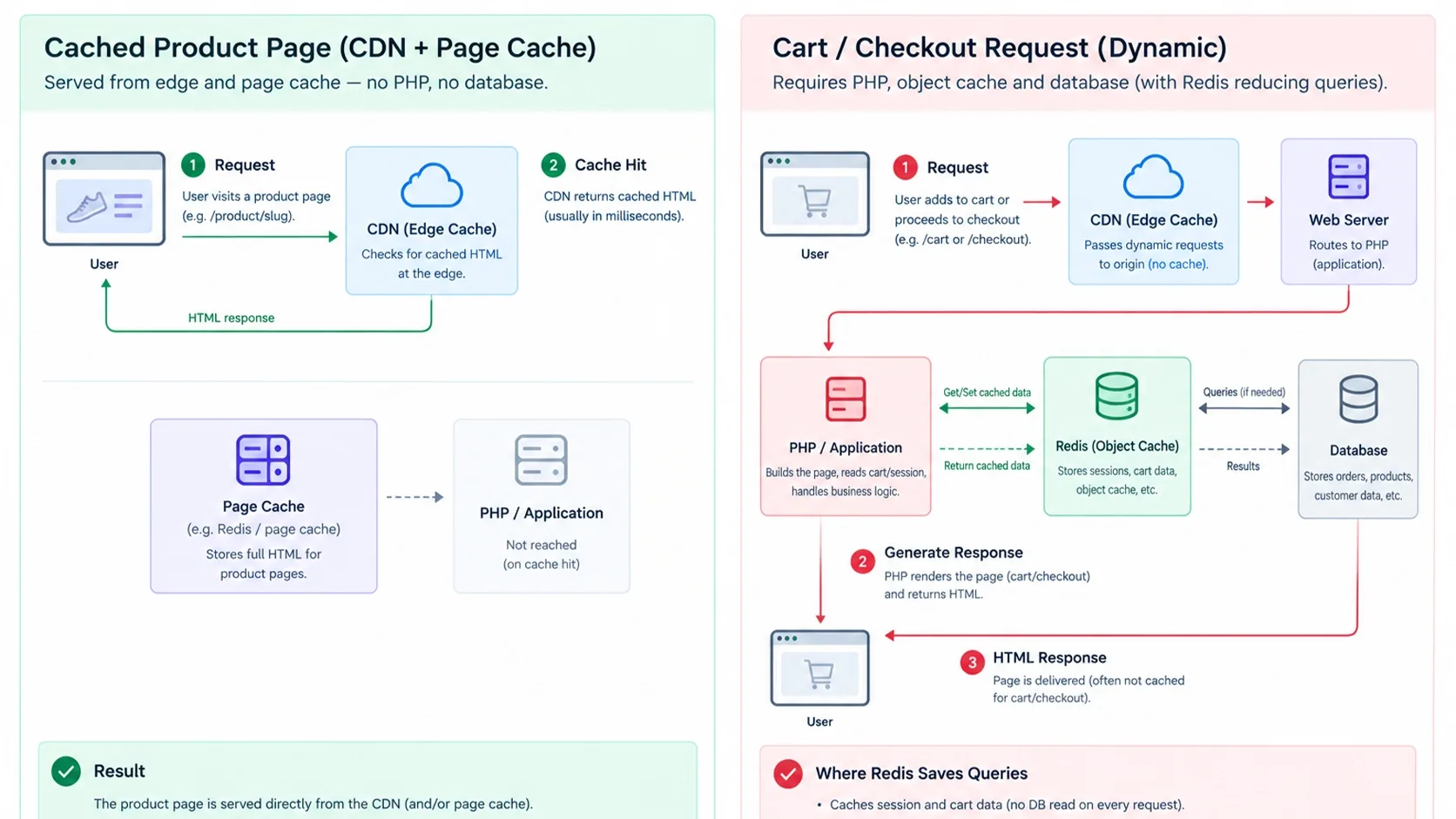
Page caching and object caching solve different problems. A page cache such as the one in WP Rocket stores finished HTML, and an object cache stores the results of database queries and computed values between requests.
WooCommerce cannot page-cache the cart, checkout or My Account pages because they are different for every shopper. Those pages hit PHP and the database every time.
- What it does: a persistent object cache, usually Redis or Memcached, keeps repeated query results in memory instead of rebuilding them.
- How to set it up: run Redis on the server and connect it through a plugin such as Redis Object Cache, which installs an object-cache.php drop-in.
- What to watch: memory limits, eviction settings and cache flushes after deployments.
- What can break: stale data after product or price updates if the cache is not flushed correctly, and failures when Redis runs out of memory.
- How to verify: confirm the cache is actually connected in the plugin's status screen, then watch hit rates and query counts on a populated cart.
The checkout has to survive the optimization. Test a full order with the cache on.
4. The Multi-Purpose ThemeForest Theme Trap
A $60 theme with fifty sliders, bundled page builders and demo content looks like a bargain. In practice it ships CSS and JavaScript your store never uses and builds a huge DOM, which hurts LCP and INP.
I covered the same trade-off for Shopify stores in my earlier guide, Free Shopify Themes vs. Premium vs. Custom: Which Is Right for You?, and the logic carries straight over to WooCommerce.
- Audit: check JavaScript and CSS coverage in Chrome DevTools, DOM node count and long tasks on product and category pages.
- Replace: move to a lightweight block theme or a custom theme with only the components you use.
- Retire the page-builder habit: limit heavy builders to pages that truly need them.
- What can break: layouts, widgets and shortcodes that depend on the old theme, which is why I move content into blocks before I switch.
- How to verify: compare INP, LCP and DOM size on product, category and checkout templates, not just the homepage.
A rebuild is not always needed. Sometimes dequeuing a few assets on the right templates does most of the work.
Stop Paying the Multipurpose Theme Tax
Vareweb builds WooCommerce stores on custom, hand-coded themes with no unused CSS, no page-builder bloat, and a lean DOM, so your design looks custom and loads like it.
5. Moving WP-Cron to the Server Level
WP-Cron is not a real scheduler. WordPress checks for due tasks when someone loads a page, so a customer can end up paying for a background job with their own page load.
The WordPress developer handbook describes the fix: disable the built-in trigger and call wp-cron.php from the system scheduler.
- Step 1: add define('DISABLE_WP_CRON', true); to wp-config.php.
- Step 2: create a server cron job that requests wp-cron.php every five minutes, or less often if your tasks allow it.
- Step 3: watch for missed scheduled posts, emails and renewals for a few days.
- What can break: if the server cron job fails silently, nothing runs at all, so monitor it and confirm the last run time.
I have seen stores stumble during sales simply because scheduled work and customer traffic competed for the same PHP workers. Moving cron out of the request path removes that clash.
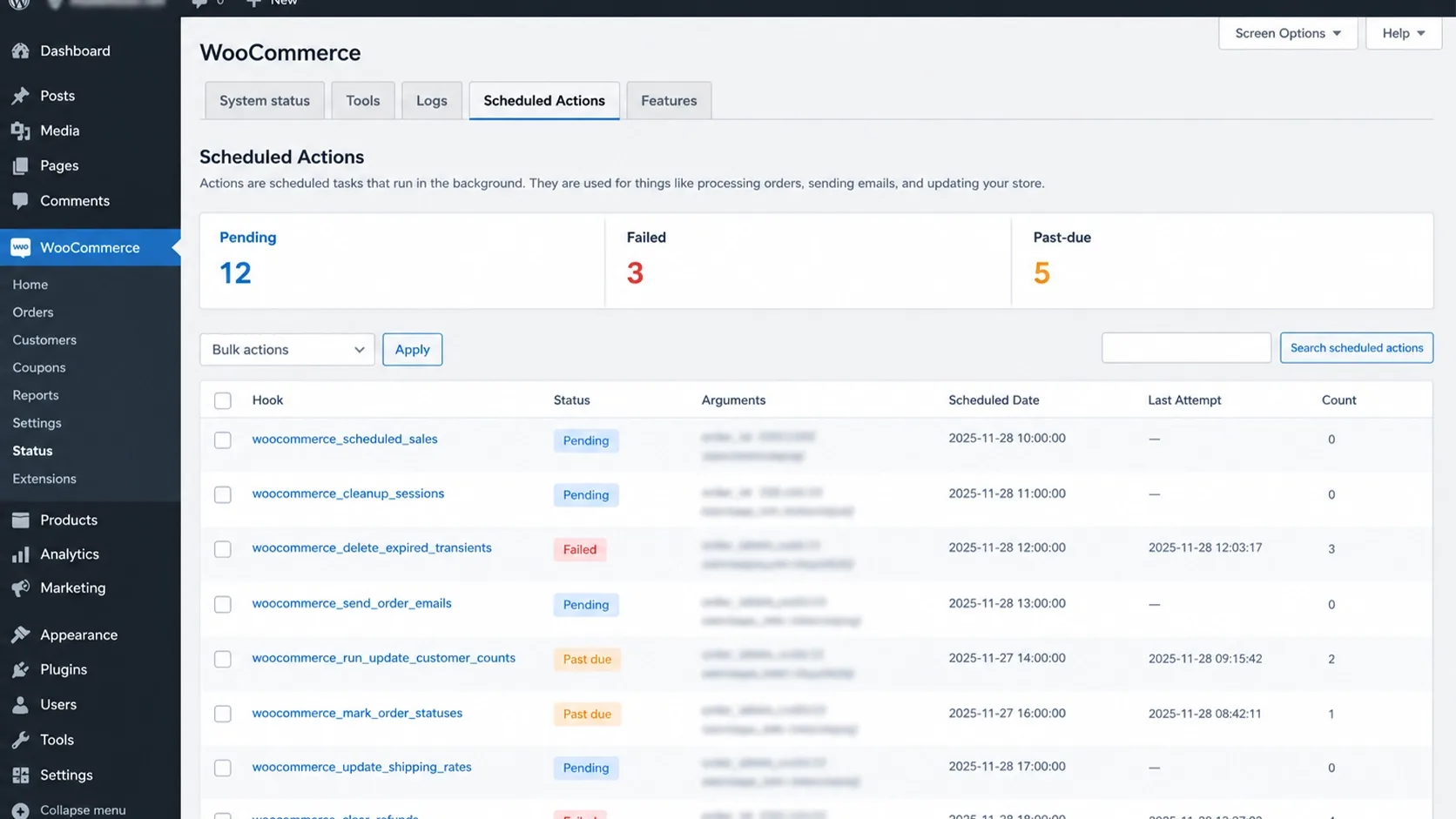
6. Action Scheduler Bloat and Stuck Background Tasks
WooCommerce runs background work through Action Scheduler: subscription renewals, webhooks, emails and imports. Failed and pending actions can pile up by the thousands in its tables.
According to its documentation, failed actions are kept for three months by default since version 4.0.0, and you can change that with the action_scheduler_retention_period_for_failed filter.
- Look first: open WooCommerce, Status, Scheduled Actions and filter by Failed and Past-due.
- Find the cause: repeated failures usually mean a broken webhook, an expired token or a gateway problem, so clean up after you fix the source.
- Clean carefully: the docs show a WP-CLI command, wp action-scheduler clean --status=failed --batch-size=50 --before='90 days ago' --pause=2, which you should test on staging first.
- What can break: deleting pending actions can cancel real renewals or emails, so only clear completed and clearly dead failed actions.
Do not raise concurrent batches without testing. The same documentation warns that it can overload a server.
7. Overloaded Product Search (The Need for Elasticsearch)
The default WordPress search builds SQL with LIKE conditions across titles and content. On a small catalog nobody notices, but on tens of thousands of SKUs it becomes one of the most expensive queries on your site.
Shoppers also type misspellings, part numbers and model codes, which the default search handles poorly.
- Option 1: a dedicated search service such as Algolia or a managed Elasticsearch or OpenSearch index, which offloads the query from your database.
- Option 2: a WooCommerce search plugin with its own index, if your catalog is moderate. Check which features sit in the paid tier before you commit.
- Test: time typical, misspelled and SKU searches on staging with a realistic product count.
- What can break: a stale index after imports or stock changes, so check how and when the index refreshes.
Search that avoids your database is search that stays fast when traffic spikes.
Growing Catalog? Architecture First, Then Hardware.
Vareweb sets up managed WooCommerce hosting, object and page caching, database cleanup, and CDN delivery together, so your store scales without paying for servers to run inefficient code.
8. Heavy API Calls on Checkout (Live Shipping and Tax Calculators)
Live rates from carriers or a tax service are API calls made while your customer waits. If the external server takes three seconds to answer, that is three seconds added to the checkout.
- Cache rates where the rules allow, for example by weight and zone.
- Use flat-rate or tiered shipping for most products and keep live rates for the cases that need them.
- Set timeouts and fallbacks so one slow provider cannot freeze the page.
- Check the log: find the slowest external request with Query Monitor's HTTP API calls panel.
- How to verify: compare checkout response time with the carrier or tax API enabled and disabled in staging.
Do not simplify tax rules just to be faster. Tax accuracy is a legal matter, so confirm any change with your tax adviser.
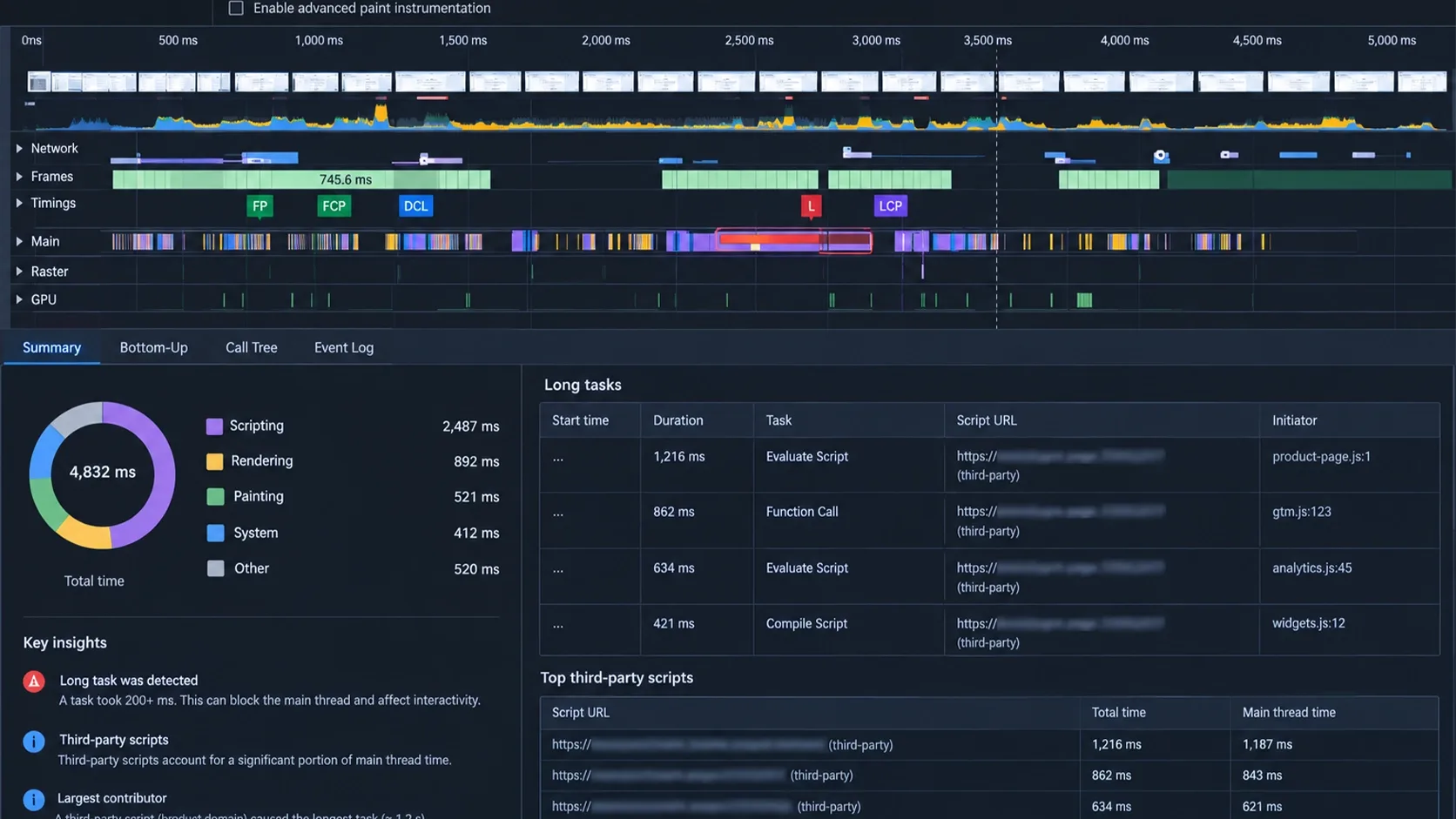
9. Third-Party Script Bloat (Pixels, Chatbots and Heatmaps)
Marketing stacks quietly become the slowest part of many stores. Five tracking pixels, a heatmap tool and a chat widget all compete for the main thread, which damages INP.
- Inventory every tag: list each script, its owner and the pages it needs to run on.
- Load conditionally: fire chat and heatmap tools only where they matter, and delay non-essential tags until after interaction.
- Use Google Tag Manager with discipline. It centralizes control, but tags still load third-party JavaScript, so it does not make them free.
- Remove the dead ones: old pixels from past agencies often still fire.
The goal is not an empty page. It is a marketing stack where every script earns its cost.
- How to verify: run a performance trace with and without the tags, and test conversion tracking afterward so you do not trade speed for broken data.
10. Sub-Optimal PHP Versions and Missing OpCache
Running an old PHP version is a self-inflicted wound. W3Techs showed that on October 19, 2026, 27.0% of websites using PHP were still on PHP 7, while 65.2% were on PHP 8.
WooCommerce's own server requirements now list PHP 8.3 or later, MySQL 8.0 or MariaDB 10.6 and at least 256 MB of WordPress memory.
- Upgrade PHP on staging first, since old plugins can break on newer versions.
- Enable OPcache. It keeps compiled PHP in shared memory so scripts are not recompiled on every request, and the PHP manual lists its settings.
- Tune it: memory and file limits should fit your plugin count, and a revalidation delay can keep code changes from appearing right away.
- How to verify: compare TTFB and server CPU under the same test load before and after the change.
I will not promise a percentage gain, because it depends on your code. But an unsupported PHP version also means unsupported security fixes.
11. Serving Heavy Images Without an Edge CDN and Modern Formats
Store owners often upload full-size camera images straight into the media library. The browser downloads far more than it displays, and the origin server pays for the bandwidth.
- Resize at upload to the largest size you actually display, and keep zoom quality where shoppers need it.
- Use modern formats such as WebP and AVIF where supported, either through an image plugin or at the edge.
- Serve through an edge CDN. Services like Cloudflare image transformations optimize and cache images close to the user; check which formats and plans apply to you.
- Protect LCP: never lazy-load the main product image, and give every image width and height.
- What can break: blurry zoom images, missing thumbnails after regeneration and CDN cache serving old image versions.
Check the Network panel and look at image transfer size. It is usually the biggest single download on a product page.
12. Structuring WooCommerce for AI Answer Engines (GEO and AEO)
A slow store hurts AI discovery mostly through weak fundamentals, not through a documented cutoff. I cannot point to a published rule that bots abandon a site at a given TTFB, so I will not invent one.
What I can say is that web.dev's TTFB guide gives 0.8 seconds or less as a rough good target, and TTFB sets a floor under LCP.
- Fast, crawlable responses: keep the server answering quickly so pages can be fetched and rendered reliably.
- Clean product data: output accurate Product, Offer and AggregateRating JSON-LD that matches visible content, as Google's product structured data guidance
- One owner for schema: a theme, an SEO plugin and WooCommerce can each print a Product block, so remove duplicates.
- How to verify: run a product page through Google's Rich Results Test and compare every marked-up price and availability value with what the page shows.
Google says no special AI markup is needed to appear in its AI features, and no schema guarantees a citation. My colleague Kashaf, Vareweb's SEO Manager, covers the indexing side in Common WooCommerce SEO Issues and How to Fix Them.
A Fast Store Is Only Half the Job. Make It Findable Too.
Vareweb optimizes for Google and AI search engines, including AI Overviews, ChatGPT, and Perplexity, with accurate product schema and a technical foundation that search engines can crawl quickly and trust.
Why Just Upgrading Your Hosting Won't Fix Bad Code
Here is the scenario I see most often. A merchant moves from cheap shared hosting to a much larger managed or cloud instance, pays several times more and finds the store is still slow.
More CPU and RAM do not fix an unindexed query, a runaway loop or a theme that ships a megabyte of unused JavaScript. They only let the same inefficiency run on bigger hardware.
A second independent data point supports this. The CartHacker dataset on ecommerce site speed by platform, built from Chrome UX Report data, found 39.5% of WooCommerce sites passing all three Core Web Vitals on mobile in August 2026, against 53.0% for all websites. Hosting is part of that picture, but so is the code running on it.
Ask your host for CPU, memory and slow-query data during a slow period. If they show a few expensive queries or workers waiting on the database, hardware is not the answer.
- Fix the architecture first: database, object cache, cron, theme and scripts.
- Then size the hardware against measured load, not against fear.
- Use headless only when you need it. I explained when decoupling pays off in Headless Shopify: What It Is, How It Works, and Do You Really Need It?, and the same discipline applies to WooCommerce.
If you decide the build itself is the problem, our ecommerce web development services cover that kind of architectural rework, but measure first. Sometimes a focused cleanup is all you need.
FAQs
Is WooCommerce inherently slower than Shopify?
Not inherently, but it is self-managed, so the result depends on your hosting, theme and plugins. In July 2026 Chrome data analyzed by Store2x, 45.6% of WooCommerce sites passed Core Web Vitals on mobile against 81.8% of Shopify sites. A well-engineered WooCommerce store can still pass, and the gap is mostly a configuration gap.
Will WP Rocket fix my slow WooCommerce checkout page?
Not by itself. Page caching cannot cache the cart, checkout or account pages because they are different for every shopper. You need object caching, a lean theme, clean database tables and controlled scripts as well.
What is a good page load time for a WooCommerce store in 2026?
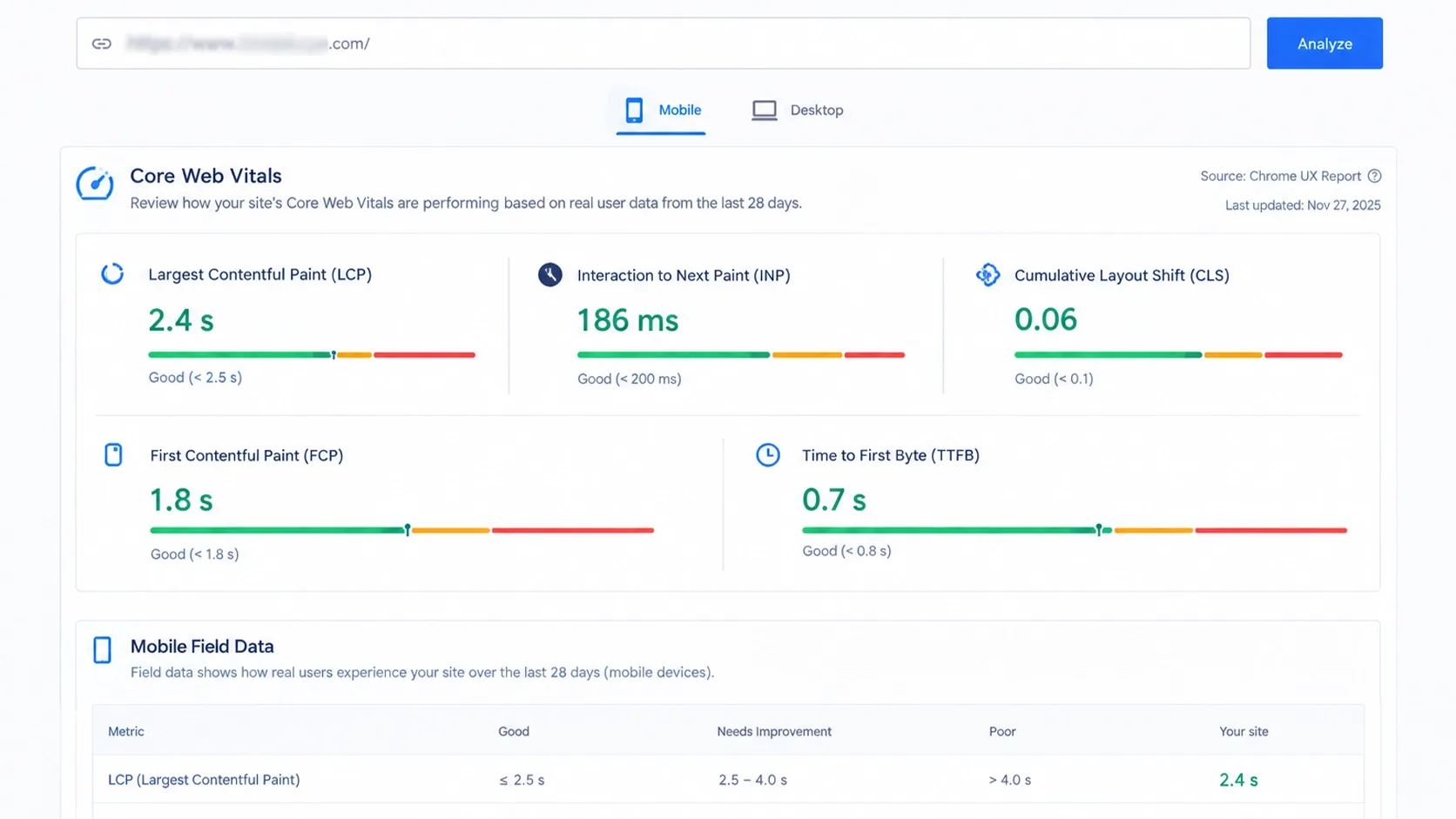
Google does not set one load-time number. Its good thresholds are LCP of 2.5 seconds or less, INP of 200 milliseconds or less and CLS of 0.1 or less at the 75th percentile of real users. For server response, web.dev suggests about 0.8 seconds TTFB as a rough guide.
How do I fix a slow WooCommerce admin dashboard?
Check autoloaded options, expired transients, Action Scheduler backlogs and heavy admin-side plugins with Query Monitor. Enable persistent object caching and move WP-Cron to a server job. Test each change on staging.
Why does my WooCommerce store crash during high traffic?
Usually uncached requests exhaust PHP workers or the database, often combined with cron jobs and unindexed queries. Add object caching, offload search, cache what you safely can and load test before the sale. Bigger hardware helps only after those fixes.
How many plugins are too many for a WooCommerce site?
There is no safe number. A few heavy plugins that load assets everywhere can hurt more than dozens of light backend ones. Judge each by what it executes, where and what it costs.
Should I use a headless architecture to speed up WooCommerce?
Only if you have a clear need and the engineering capacity to maintain it. Headless can improve frontend control, but it adds complexity and does not fix a slow database or API. Try a cleanup and a leaner theme first.
What is object caching and why does WooCommerce need it?
Object caching stores the results of database queries and computed data in memory, usually with Redis or Memcached, so they are not rebuilt on every request. WooCommerce needs it because cart, checkout and account pages cannot be page-cached. It cuts repeated database work on exactly those pages.
Ready for a WooCommerce Store That's Actually Fast?
Vareweb benchmarks Core Web Vitals during the build and monitors them after launch, so speed gains stick. Book a free call and we'll tell you what's slowing your store and what it takes to fix it.

Written by
Minhaj
Minhaj Ahmed is an experienced web and software development professional specializing in web applications, mobile apps, SaaS platforms, and AI-powered solutions. As Head of Development at Vareweb, he brings a strong software engineering background to building scalable digital products and automation systems. He writes about web development, mobile apps, AI, software engineering, and emerging technologies.